
You just created a workspace, opened the first screen, and found a blank table. No rows, no hint about what belongs there, and a cursor blinking in empty space. That pause is where many products lose people who were ready to start.
Empty state design is the work of turning that pause into a clear next step. A blank container can look like a loading failure, a permissions problem, or a product that never finished. The people who see it are often new, stuck after a search, or trying to recover something they deleted. Treating the screen as leftover whitespace is how activation stalls on day one.
This guide walks through the pattern the way a designer would walk a colleague through that table: what the emptiness means, which job the screen has to do, which layout fits the cause, how the words should read, and how to check the result for people who do not use a mouse. You will also get a measurement model that refuses to count a click as success when the task never finishes.
Why Empty States Deserve More Design Attention
A new teammate creates a project space and lands on a dashboard with a header and an empty grid. They pause: should they add the first row, or is something broken? That moment can decide whether they take a first meaningful step or leave.
Every list, inbox, dashboard, and project space can appear empty for a different reason. A first-use screen needs to help someone get started. An empty search should help them adjust a query. A cleared workspace may need a way to restore or recreate content. One generic message cannot serve all three. The Interfaces Institute describes empty states as a recurring interface condition, not an edge case to skip during a sprint.
Why a small share still moves the funnel
One empty screen may affect few users, yet a product can have dozens of lists, filters, and reports. Each adds another chance for someone to stall on the way to a first useful task. If the dashboard gives no clear next step, the person may refresh, back out, or close the tab.
Treat each empty state as a testable point in the activation funnel. Record which scenario appeared, whether the person started the suggested action, and whether they completed the task. A click alone is not success: someone can select “Create project” and still abandon the setup. Compare completion and abandonment across wording, sample data, and calls to action to learn which screen helps people move forward.
Practical rule: Test a new account, an empty search, a cleared workspace, and an unavailable-data condition separately. Each screen has a different cause and user intent.
On a phone, a blank panel can fill the viewport and leave little room for explanation. These practical mobile UI design tips can help you fit a clear message and one action without crowding the screen.
What an Empty State Is and Where It Came From
A project dashboard opens with no projects. The empty table could mean the workspace is new, a filter hid every project, or a request failed. An empty state is the screen shown when a product area has no content to display. Like a sign on a café door, it helps explain what is happening in a space that would otherwise look abandoned.
An empty state describes an empty result. A spinner shows that data is still loading. An error message reports that a request failed. Keeping these states distinct helps prevent a blank page from looking like a product fault.
From a blank screen to a standard component
During the 2010s, design systems began treating empty states as a defined interface pattern rather than an accidental gap. Material Design and Apple's Human Interface Guidelines included guidance for these screens. That shift made the empty state part of the product experience, not just a visual detail.
IBM's Carbon Design System also describes situations where an application has no data to display, such as first use, after deletion, or when information is unavailable. Design systems helped teams apply the pattern consistently across products. The details still depend on why the screen is empty.
Three conditions you should name before you design
A first-use inbox and a cleared inbox may both contain zero messages, but they represent different scenarios. The first may need a way to create or import a message. The second may need to confirm that the person has finished their work.
First use: The account or workspace is new. Nothing has been created, imported, or connected.
User-cleared content: The person deleted, archived, or completed everything. The empty screen may signal success.
No result or unavailable data: A search or filter found nothing, or a permission or fetch issue prevents content from appearing.
Name the cause before opening a design file. Each cause calls for a different explanation and next step. An empty search result, for example, should help someone reconsider the query, while a new workspace should point toward getting started.
The Three Jobs Every Empty State Must Do
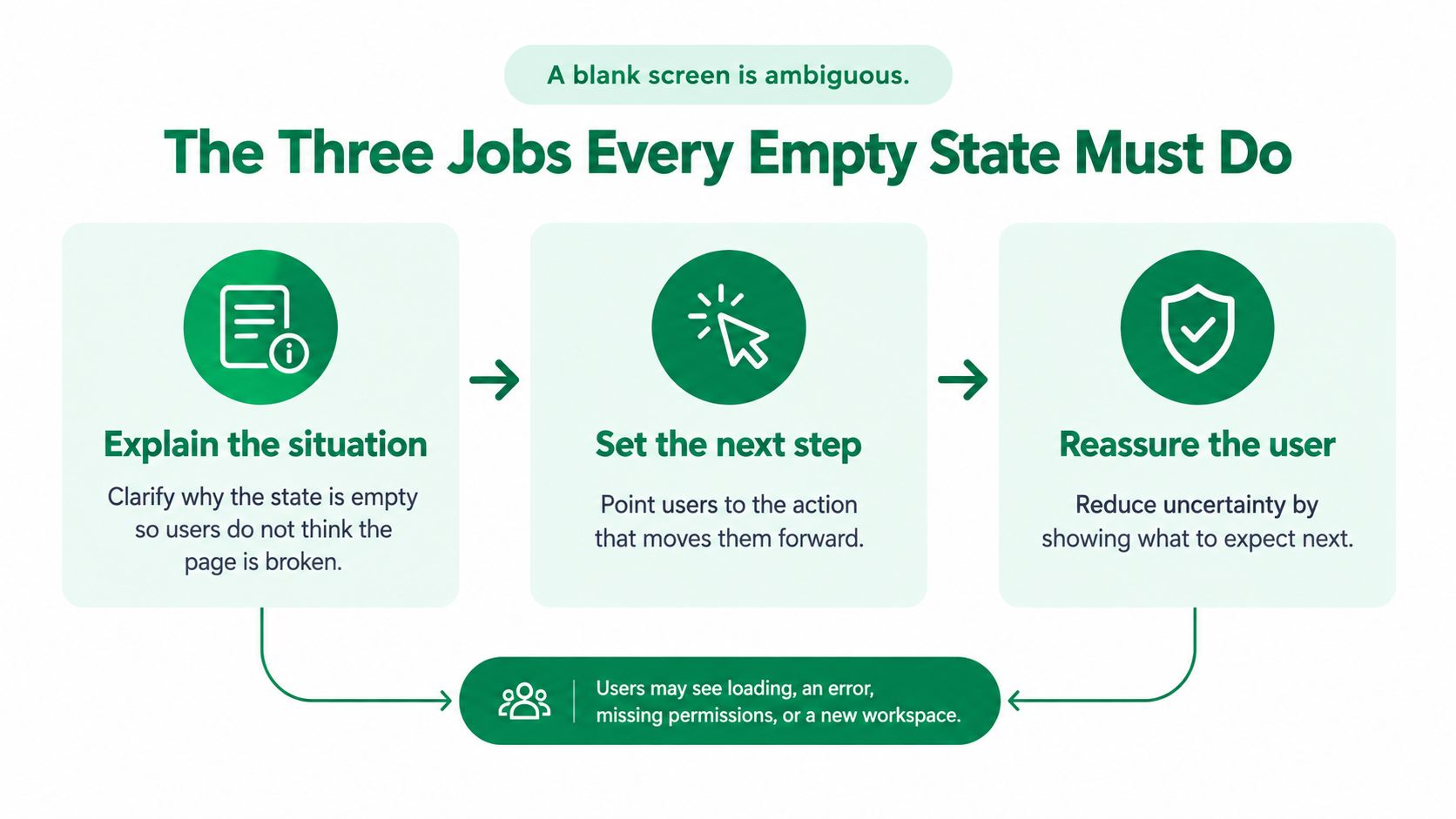
A blank screen is ambiguous. The same white table can mean the page is still loading, the request failed, the person lacks permission, or the workspace is new and waiting for a first object. Nielsen Norman Group frames an empty state as a system-status and task-initiation mechanism with three jobs: communicate why content is absent, teach what belongs in the container, and provide a direct path to the relevant task.
Explain why the content is absent
Job one is status. On a new project workspace, the message should say that no projects exist yet because this space was just created. On a filtered task list, it should say that no tasks match “owner: me” and “status: blocked.” Without that sentence, people guess. Guessing produces refreshes, repeated searches, and the feeling that the product is unreliable.
Teach what belongs in the container
Job two is education. Show the object type the container will hold. A projects table can name projects, owners, and status even while the rows are absent. A faded column header or a one-line description of the future contents does that teaching without pretending data is already there. People relax when they can picture the filled screen.
Offer the path that matches the cause
Job three is the action, and the correct action changes with the cause.
A new workspace should name the expected object and offer one primary action, such as “Create project” or “Import data.” A no-results view should identify the active query or filter and offer “Clear filters,” not “Create.” Offering create on a filtered search sends people into a form when they only wanted a wider result set.
Build these as an explicit state model, not one generic component.
First-run or no data. Status, object type, and one creation or import action.
Filtered no-results. Restate the query and offer to clear or broaden it.
Completed or cleared. Confirm the outcome and offer a path back to new work only if it helps.
Permission-restricted. Say that data may exist and that this account cannot open it. Point to a request or an admin, not to create.
Failed fetch. Say the load failed and offer retry or support.
Each state can emit its own events, such as empty_state_viewed, primary_action_clicked, filter_cleared, and retry_clicked. Those events only mean something if the states were separate to begin with. A totally empty container, with no status and no path, fails all three jobs at once.
Choosing the Right Pattern for Each Empty State
Not every empty screen needs an illustration, and not every one needs a button. The wrong pattern sends people down the wrong path. A setup checklist on a failed search looks like onboarding. A celebratory graphic on a permissions block looks like a joke.
Five patterns cover most products.
A short explanation with one primary button fits first use when a single create or import action is enough. A sample-data preview helps when the filled screen is hard to imagine, such as a report with columns, charts, and filters. A text link fits lighter recovery, like clearing one filter or opening docs. A setup checklist fits multi-step onboarding where connect, invite, and import all have to happen before value shows up. A calm confirmation fits content the person cleared on purpose, where a loud call to action would undo the relief.
When sample data helps and when it lies
Sample rows help a first-run analytics view because people can see what a populated chart will contain. Label them as samples, and give a clear way to replace them with real records. The same rows hurt a billing table. People may treat placeholder invoices as live charges, export them, or share a screenshot with finance. If mistaking a sample for a record would be costly, skip the preview and describe the object in words instead.
Pair the empty screen with the path that follows it. A user flow diagram makes the branch obvious: create, import, clear filters, request access, or retry. If two branches leave the same button, the pattern is doing too much.
State | Typical trigger | Primary action | Common mistake |
|---|---|---|---|
First use | New account or empty workspace | Create or import one object | Offering three equal buttons |
Sample preview | Complex first-run screen | Replace samples with real data | Unlabeled rows that look live |
No results | Search or filters return nothing | Clear filters or edit the query | A create button that ignores the query |
Cleared on purpose | Inbox, list, or queue finished | None, or a quiet link back | Treating success like an error |
Permission block | Role cannot see existing data | Request access | Implying the data does not exist |
Failed fetch | Request did not return | Retry | Copy that sounds like “you have no items” |
A decision rule you can apply in review
Decorative illustration should support the message, never replace it. If you remove the picture and the screen no longer makes sense, the words are too thin. Show a primary action only when the person has permission to take it. A disabled create button with no explanation is worse than no button, because it looks like a bug.
The same restraint applies to forms that follow the empty state. Design forms that users finish, from ogBlocks, is a practical follow-on when the next step is a create or import form rather than another empty panel. One clear action on the empty screen should open one clear form, not a wall of optional fields.
Writing Microcopy That Points Users to the Next Step
Microcopy is where the screen either helps or stalls. A polished illustration cannot rescue “No items found.”

Headline plus a short description
SAP Fiori's empty-state guidance treats the message as the mandatory element. Use a primary headline plus a supporting description. The headline should explain why the state is empty, preferably in a single line. The description should give context and say what to do next, in three lines or fewer. Illustrations and calls to action are optional. Add a relevant button or text link when a clear next step exists and the person is allowed to take it.
Before and after
Vague copy hides the cause. Specific copy names it and names the recovery.
Before: “No items found.” After: “No invoices match ‘Acme' and ‘Overdue.’” Description: “Those filters are hiding the rest of the list. Clear them to see every invoice in this workspace.” Action: “Clear filters.”
Before: “Nothing here yet.” After: “This workspace has no projects.” Description: “Projects will list owners, status, and due dates once you add one. Start with a blank project or bring in a spreadsheet.” Action: “Create project.”
Before: “Access denied.” After: “You can't open billing for this workspace.” Description: “An owner can grant you access. Until then, this page stays empty on purpose.” Action: “Request access,” only if that request exists.
Read the pair out loud. If the headline could sit on any screen in the product, it is still too vague.
Three questions for every screen
Audit each empty state with three questions. Does the headline identify the cause? Does the description explain the consequence? Does one permitted action help the person recover or proceed?
If any answer is no, rewrite before you debate illustration style. Teams can upload the screen to Uxia, set a mission such as “find the next action,” and read synthetic participants' transcripts to see whether the state makes sense without a facilitator in the room.
A short walkthrough of how sparse screens guide a first action helps when you are calibrating tone. The clip below shows the same idea in motion: a container with nothing in it still has to point forward.
Keep the voice plain. Name the object the product already uses, and do not apologize for a normal empty list.
Making Empty States Accessible to Every User
An attractive empty state can still be unusable. Decorative imagery adds noise for screen-reader users. A call to action can sit outside the tab order or carry a name like “button” that says nothing about the task. Most write-ups stop at copy and a picture. The behavior for keyboard-only users, and for people who hit an empty result after filtering, gets skipped.
The gap is large in the wider web. The WebAIM Million 2025 analysis found WCAG violations on 94.8% of the world's top one million homepages, with an average of about 51 detected errors per page, as reported in this 2025 accessibility study.pdf). Empty states inherit those failures when teams ship them as pictures with text baked in.

Checks you can run on one screen
Semantic heading: The status is a real heading in the page outline, not only large styled text, so people can jump to it.
Focus order: Tabbing moves from the heading to the description and then to the primary action, with a visible focus ring.
Accessible name: The control reads “Create project,” not “click here” or an unlabeled icon.
Status announcement: After a filter returns nothing, a live region announces the new status instead of leaving the change silent.
Contrast and motion: Text and icons meet contrast minimums, including muted secondary lines. Animated illustrations respect reduced-motion preferences.
Localization: Longer translations still wrap without covering the action.
Kogifi's guide to accessible web design is a solid reference when you are setting those checks as acceptance criteria rather than as a late audit note.
No data is not the same as no access
“No projects exist” and “projects exist, but you cannot open them” need different explanations and different actions. The first invites creation. The second must not imply the workspace is unused, and it must not offer a create action the role cannot complete. Saying “nothing here” on a restricted billing page teaches the wrong model of the product.
Automated scans will not catch a misleading status or a button that is technically focusable but unnamed in context. Validate with disabled users, and pair that with structured accessibility testing so keyboard paths, names, and announcements are part of the scenario, not a checkbox after visual QA.
If the only way to understand the empty screen is to see the illustration, the screen is not finished.
Real-World Empty State Examples and Templates
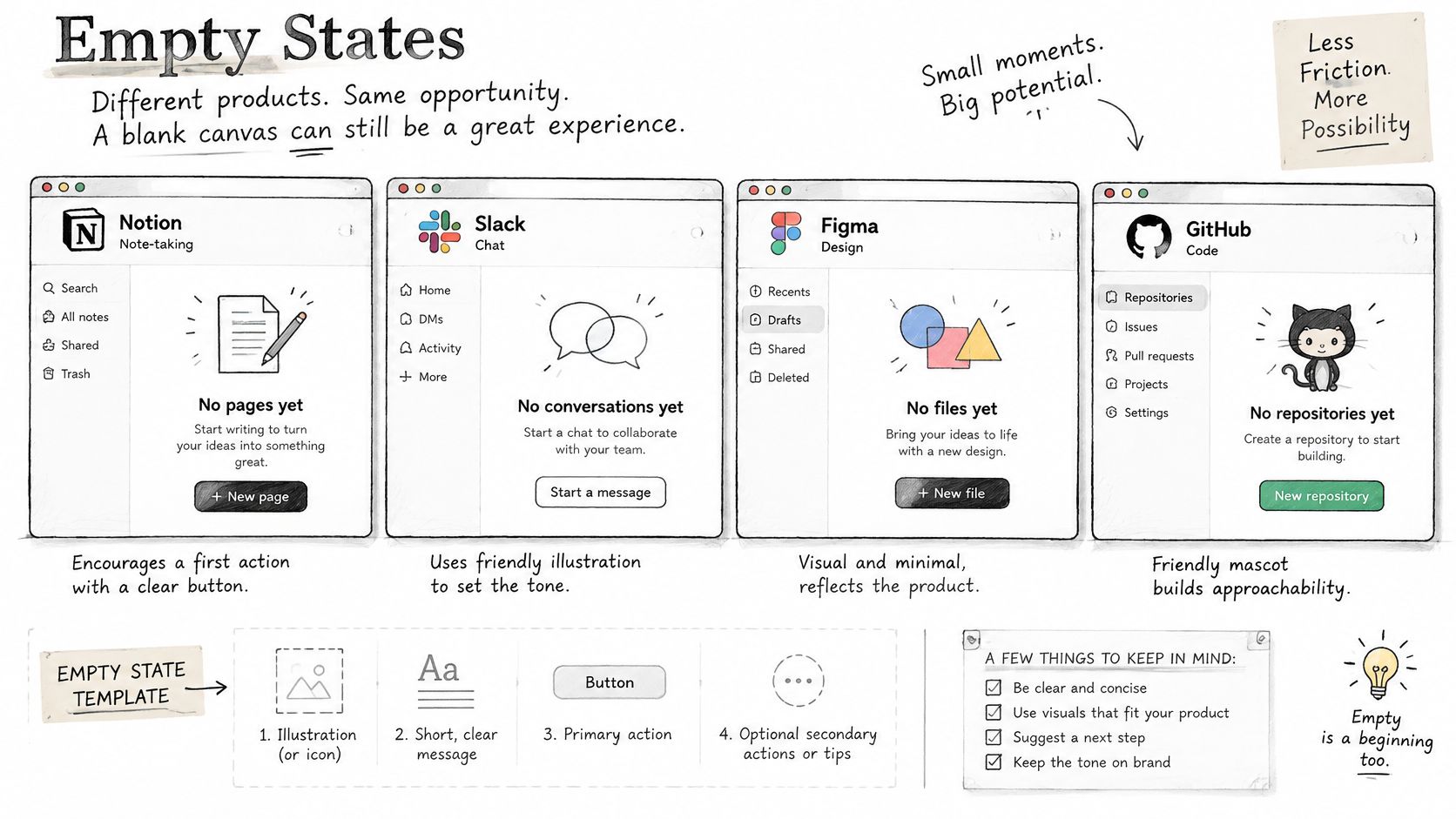
Shipped products are a better teacher than a blank component spec. A 2025 audit of 119 empty-state instances across ten products, including Notion, Slack, Figma, Linear, GitHub, Stripe, Retool, Atlassian, Asana, and Airtable, found that first-use onboarding was the most common context, at 45% of instances, according to Northbase's empty-state audit. Mapping these screens early in onboarding is not optional taste. It is where the pattern shows up.
Tone in that audit was mostly calm. 81 of 119 states, or 68%, used a neutral tone. 32, or 27%, used an encouraging tone. Only six, or 5%, used a celebratory tone. Neutral or encouraging voice is the common choice. Exaggerated celebration is the exception, and it fits a cleared queue better than a permissions wall.
Four templates you can adapt
Start neutral or encouraging. Add celebration only when the person finished something on purpose. Swap in your product's object names so the lines sound like the rest of the interface.
First use. Headline: “No projects in this workspace yet.” Description: “A project holds tasks, owners, and a due date. Create one to see them here.” Action: “Create project.” Test prompt: “What would you do next, and what do you expect to see afterward?”
No results. Headline: “No tasks match these filters.” Description: “Owner is you, and status is blocked. Clearing the status filter shows your other tasks.” Action: “Clear filters.” Test prompt: “Why is this list empty, and how would you see tasks again?”
Cleared. Headline: “You're caught up.” Description: “Nothing is waiting in this queue. New items will show up here when they arrive.” Action: none, or a quiet “View archive” link. Test prompt: “Does this feel finished, or does it feel like something broke?”
Permission-restricted. Headline: “Billing is limited to workspace owners.” Description: “This account can use projects, but not invoices. Ask an owner if you need access.” Action: “Request access,” if the product supports it. Test prompt: “Do you think there are no invoices, or that you are not allowed to see them?”
Run those prompts on first-use, filtered, completion, and permission screens. You are listening for whether the tone feels helpful or distracting, not for whether people compliment the illustration. If they quote the headline back in their own words and name the right action, the template is doing its job.
Testing and Measuring Empty States Before Launch
Knowing what the screen should say is not the same as proving it works. Three checks answer three different questions, and none of them replaces the others.
A manual review catches obvious mismatches, such as a create button on a no-results state or a headline that could belong to any page. A scenario-based prototype test shows whether a specific person, with a specific goal, can find the next action without coaching. Live analytics show what happens after launch, including people who never click and people who click and then abandon the form.
Measure each cause against a different outcome
Do not collapse every empty view into one conversion rate. A first-run state should be judged by time to first value, completion of the core action, and seven-day retention, plus the quality of what people create. A click that opens an empty form and goes nowhere is not activation.
Search and filter states should be judged by query reformulation, filter removal, successful recovery, and abandonment. Permission states should be judged by whether the right people request access and whether the wrong people stop trying to create records they cannot own. System-error states should be judged by retry success and support contact, not by how charming the illustration is.
Practitioner guidance on richer empty states reports indicative first-action lifts of 15–30%, while noting that results depend heavily on product complexity, as described by Tim Graf's empty-state measurement notes. Treat that range as a reason to instrument your own product, not as a target you can paste into a roadmap. In enterprise tools, segment by role, permissions, workspace maturity, and data volume. A zero can be correct system behavior.
Uxia sits in the prototype stage of that model. You upload image or video prototypes, set a mission and an audience, and get unmoderated runs from synthetic participants who think aloud, move through the flow, and surface friction in copy, navigation, trust, and accessibility. Transcripts and visual reports come back in minutes, which is fast enough to compare two headlines before the sprint ends. Deeper method sits in this guide to user interface design testing.
This week, upload the first-use screen and the no-results screen. Set the mission to finding the next action. Read the transcripts for the moment people hesitate, misname the cause, or choose the wrong control. Fix that line before you celebrate the click.
Uxia lets product teams test empty screens with synthetic participants before a single real user gets stuck on a blank table. Upload a first-use or no-results prototype, set a mission like “find the next action,” and review transcripts for confusion in minutes. Visit Uxia to run that scenario on the screens you are about to ship.