
Can a contrast ratio prove that an interface is accessible? Not by itself. A ratio can tell you whether a foreground and background pair meets a threshold, but it can't confirm that users can distinguish controls, understand states, read text over an image, or experience an inclusive interface.
Effective contrast validation has a wider purpose: readable text, distinguishable controls, usable interaction states, inclusive experiences, and documented WCAG decisions. A practical process starts by planning the surfaces and criteria, defining the audience and contexts, prototyping representative screens, running manual and automated checks, analyzing failures by severity, iterating, and verifying again. A WCAG contrast tool helps with the measurement, but the team still needs to judge the interface in context.
Uxia adds a complementary validation layer. Teams can upload image or video prototypes, define a mission and audience, and use synthetic participants to explore flows. The platform surfaces accessibility and usability friction through transcripts, heatmaps, metrics, and prioritized reports. The seven tools below are assessed by use case, evidence quality, workflow fit, limitations, and the next action they support, rather than by ratio calculation alone.
1. WebAIM Contrast Checker
WebAIM remains a strong starting point when a designer or developer needs to test a specific foreground and background pair quickly. Its browser-based interface accepts color values, calculates the contrast ratio, and reports WCAG 2.x AA and AAA outcomes for normal and large text. That simplicity is useful because it keeps the decision visible: a team can see the ratio, the applicable text threshold, and whether the selected colors pass.
The tool also supports Hex and RGB inputs, color sliders for nudging a failing color, link contrast options, and copyable results. Those details make it practical for documenting a design-system decision or sharing a result in a ticket. Its implementation follows the established WCAG ratio model, whose core thresholds are 4.5:1 for normal text and 3:1 for large text, as documented by WebAIM's contrast checker guidance.

Best use and limitation
WebAIM is best for manual pair validation, not page-wide discovery. It won't automatically inspect a rendered interface, sample text over a gradient, or compare hover, focus, active, and disabled states. Someone must identify the relevant colors and enter them accurately.
Practical rule: Use WebAIM before a color token enters a component library, then verify the token again in the rendered component.
That second step matters because design files may not reflect opacity, inheritance, overlays, or browser rendering. Teams can also pair the checker with Uxia's accessibility testing workflow to examine whether a passing color decision still creates usability friction in a realistic prototype. Choose WebAIM when speed, clarity, and standards-aligned documentation matter more than automated context.
2. TPGi Colour Contrast Analyser CCA
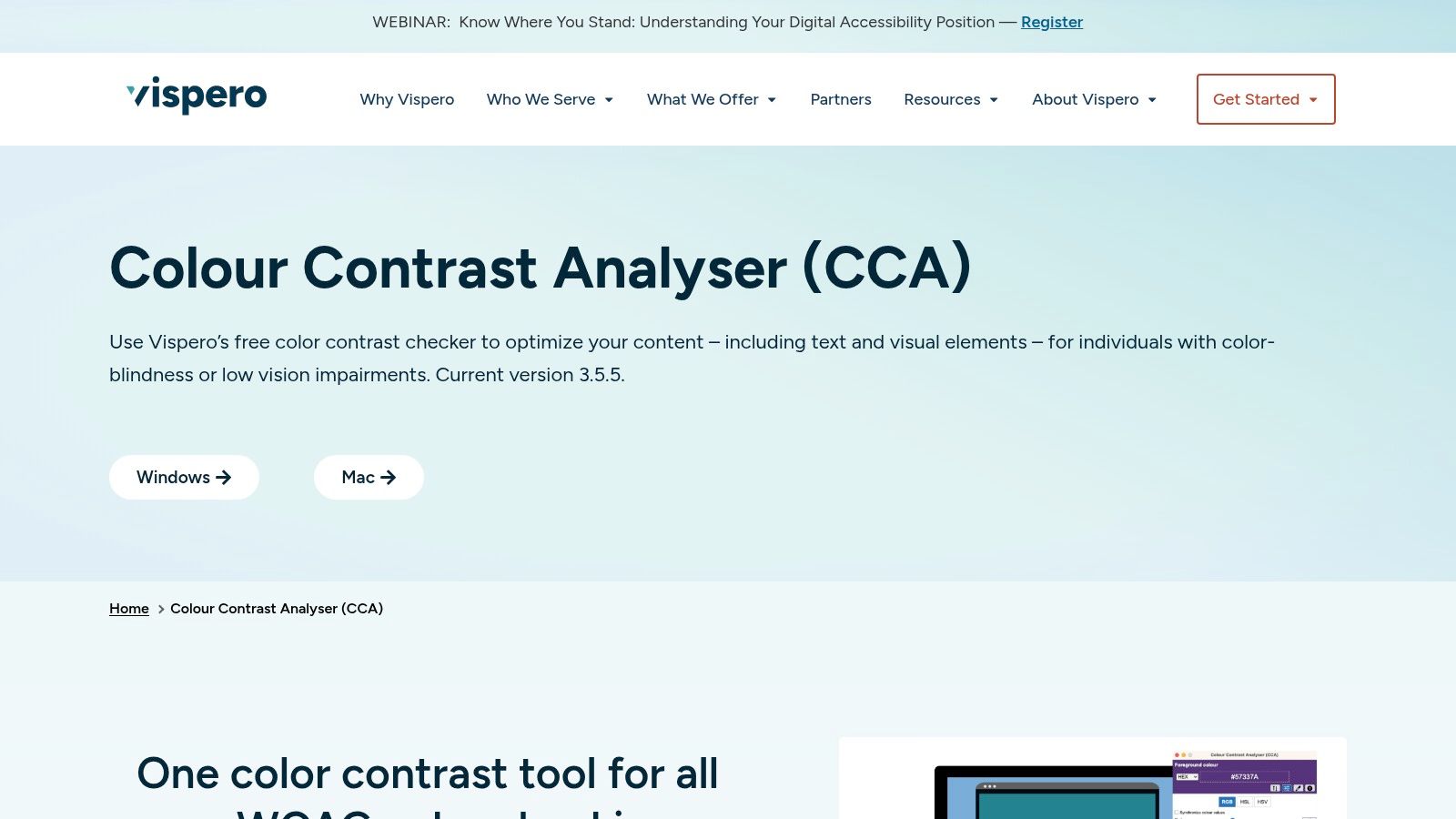
A Hex-value checker assumes you already know which colors to test. TPGi Colour Contrast Analyser takes a different route by letting you sample what appears on the screen. Its desktop application uses system eyedroppers, so a team can inspect colors from a webpage, screenshot, design file, PDF, or another application without first locating the underlying CSS or design token.
That makes CCA particularly useful for interfaces with layered backgrounds, image-based content, or non-web deliverables. The TPGi Colour Contrast Analyser supports contrast checks for text and interface elements against AA and AAA expectations. It fits accessibility audits where the question is not “what value did the designer intend?” but “what color does the user see here?”
Where it earns its place
CCA is a strong choice for screen-level investigation. An auditor can sample a border, icon, text layer, or image area directly, which reduces the gap between source values and rendered appearance. Section 508 guidance distinguishes programmatic color checks from pixel sampling, and that distinction supports using CCA when visual context is central to the finding. The relevant Section 508 color-usage guidance describes both approaches.
Its trade-off is workflow friction. The application requires a desktop installation, and it doesn't provide an APCA mode. It also won't replace a page scanner or a structured design-system audit.
Use CCA when your evidence comes from screenshots, PDFs, native applications, or complex visual compositions. After sampling, record the location, component, state, sampled colors, ratio, and required remediation. Then test the corrected design in a prototype, where Uxia can help determine whether the change improves comprehension and task confidence rather than merely satisfying a threshold.
3. Chrome DevTools Contrast Checker
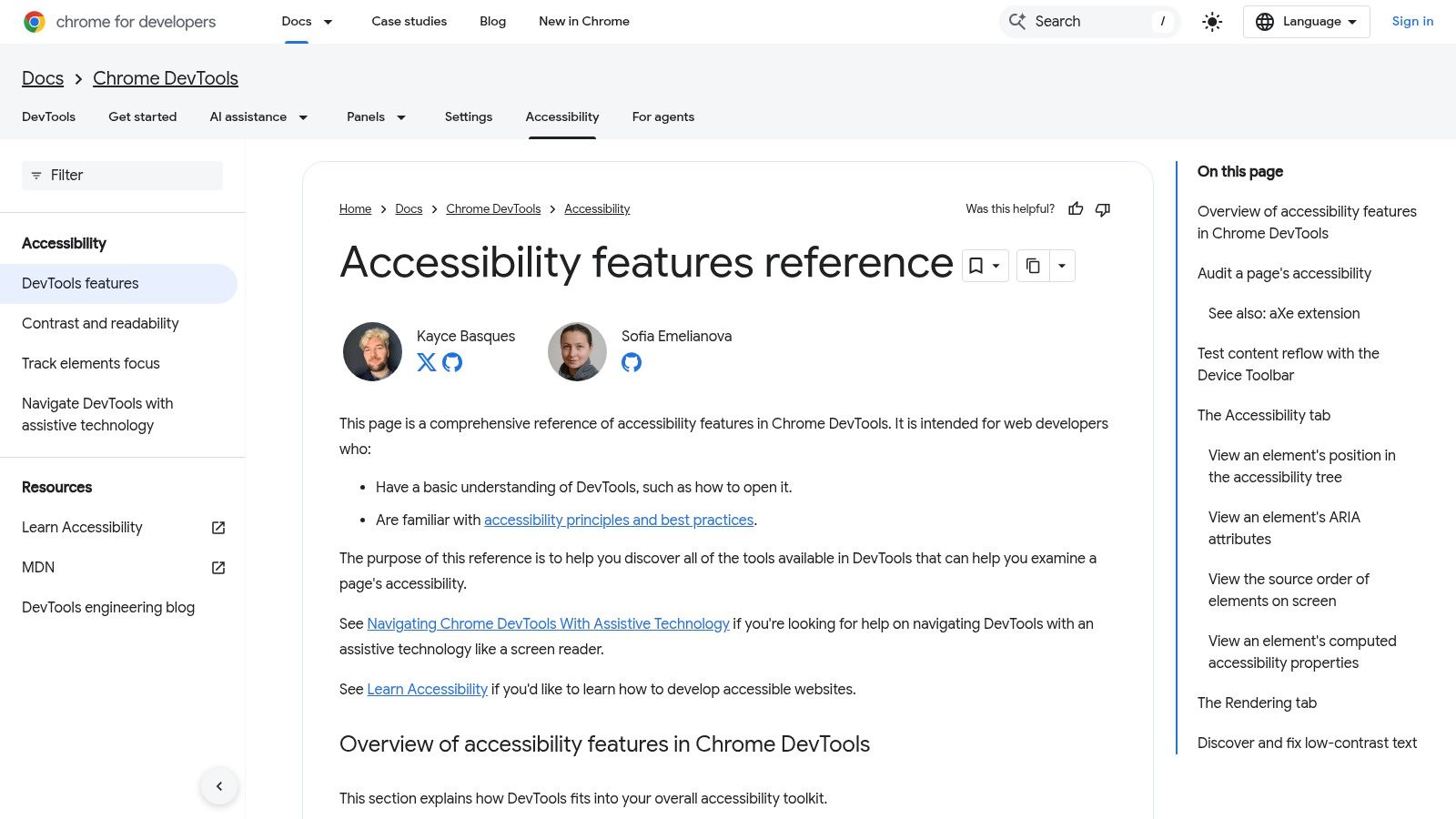
Chrome DevTools is the most useful option when the failing color already exists in a live page. Instead of copying values into a separate checker, a developer can inspect the rendered element, open the color picker, and review contrast information in the browser environment where the interface is being built.
The Chrome DevTools accessibility reference documents its accessibility inspection features. In practice, DevTools can identify low-contrast text in the page, show accessible color suggestions, and connect contrast work with other development checks. The surrounding DevTools environment also supports inspection of responsive behavior, color-scheme preferences, and visual conditions that can expose problems outside a static design file.
The development advantage
The key strength is short feedback distance. A developer can find a failing element, adjust the CSS, and inspect the result without changing tools. That supports early remediation and makes it easier to test real states, including focus and hover, rather than only the default appearance.
The limitation is that DevTools is tied to Chrome's implementation and interface. Specific features can evolve, and individual DevTools panels may have keyboard-accessibility gaps. It also doesn't create the same kind of durable audit record as a dedicated documentation workflow unless the team captures findings separately.
A browser check is strongest when it ends in a code or token change, not when it ends in a green badge.
Use Chrome DevTools during implementation and review. For a broader explanation of how to combine browser inspection with accessibility checks, see this guide to using an accessibility web checker in 2026. Once the page passes, test representative flows with synthetic participants so the team can identify copy, navigation, trust, or interaction problems that contrast metrics can't reveal.
4. Stark Contrast Checker
Stark places contrast validation inside the environments where many product decisions begin. Its suite runs in design tools such as Figma and through a browser extension, so teams can inspect actual components rather than isolated palette swatches. The Contrast Checker includes Smart Color Suggestions, which can help designers move from a failed combination toward a workable alternative without leaving the design workflow.
The Stark Contrast Checker is more than a ratio calculator in organizational settings. The broader suite supports accessibility-related workflows such as focus-order review, annotations, monitoring, reporting, and governance capabilities in higher tiers. That makes it relevant when a team needs to turn individual checks into shared design and review practices.

Best fit for design-system teams
Stark is well suited to designers who need feedback inside Figma or another supported design environment. It can help a team catch contrast issues while typography, component states, and color tokens are still flexible. That timing is valuable because changing a source token is usually more coherent than patching individual screens after handoff.
The trade-off is depth versus cost and scope. The most advanced team and governance features are paid, organization pricing can be less attractive than a single-purpose checker, and Stark is primarily design-tool and browser centric. It isn't a replacement for an IDE workflow or a full rendered-page audit.
A practical Stark workflow is to test text, buttons, icons, borders, and focus indicators inside representative components. Then export the decision into the design documentation, including the component name and state. Finish with prototype testing. Uxia can evaluate whether users notice the control, understand its state, and complete the intended task, which prevents a team from treating WCAG compliance as the only success metric.
5. Polypane Contrast Checker and In-App Auditing
Polypane addresses a harder problem than two solid color swatches. Modern interfaces often combine text shadows, opacity, filters, strokes, overlays, and multiple viewports. A checker that reads only declared color values can miss how those layers affect the final appearance. Polypane's contrast engine is designed for rendered UI complexity and supports both WCAG and APCA checks, with suggestions and previews.
The Polypane browser combines contrast analysis with multi-viewport debugging and accessibility auditing. That makes it a developer-focused environment for teams that want to inspect the page and its responsive variants without constantly switching between a browser, a contrast site, and separate audit tools. It also offers a free web-based contrast checker for simpler checks.

Why context changes the decision
Polypane is a strong fit when a contrast failure depends on rendering context, not just a token pair. A text color may look acceptable on a solid surface but become unreliable over an image, shadow, or filtered layer. Multi-viewport inspection also supports testing responsive layouts where a text block moves onto a different visual background.
Its limitation is workflow complexity. The full capability requires the paid application, and the learning curve may be unnecessary for someone who only needs a quick manual check. APCA support is useful for teams exploring perceptual contrast, but WCAG 2.2 remains the compliance anchor. WCAG 2.2 kept the established contrast requirements unchanged, as summarized in this WCAG 2.1 and 2.2 contrast guide.
Choose Polypane when developers need in-context rendering analysis plus responsive accessibility review. Use its output to prioritize failures, then validate the corrected flow with Uxia's synthetic testing workflow. A ratio can identify a visual defect, while participant behavior can reveal whether that defect blocks recognition, reading, or task completion.
6. Adobe Color Accessibility Contrast Checker
Adobe Color's contrast checker is a natural choice for teams that begin with brand palettes. Creative teams can explore color combinations in the Adobe environment and check whether text and background pairings meet AA or AAA outcomes before those colors spread into campaign assets, product screens, or shared brand guidance.
The Adobe Color Accessibility Contrast Checker uses a browser-based interface with clear pass and fail results. Its approachable presentation makes it useful for cross-functional conversations, especially when marketers, brand designers, and product designers need a common way to discuss a palette without introducing a developer-specific tool.
A palette tool, not a page audit
Adobe Color works best at the palette exploration stage. It can help teams reject an inaccessible pairing before it becomes a brand convention, but it doesn't inspect on-canvas elements automatically. Users must enter or select the relevant color pairs manually, and the tool focuses on WCAG 2.x rather than APCA.
That limitation changes the recommended handoff. A passing palette doesn't prove that a button works in focus state, that text remains readable over a campaign image, or that a chart communicates meaning without relying on color alone. WCAG 2.2 requires 3:1 contrast for relevant non-text UI components and meaningful graphics against adjacent colors, as explained by Acquia's color contrast guidance.
Use Adobe Color to establish accessible candidates, then test those candidates in real components. For a broader flow review, combine the result with Uxia's WCAG checker tools guidance, prototype missions, and audience-specific synthetic testing. The next action is straightforward: turn the passing combinations into named tokens, define where each token may be used, and retest them in both light and dark interface contexts.
7. APCA Contrast Calculator Official
The APCA Contrast Calculator represents a different kind of decision. Rather than treating the WCAG ratio as the only lens, it calculates APCA Lc values and considers text size and weight in a perceptual model intended to relate more closely to legibility. That can be useful for teams working on dark mode, modern displays, typography systems, and situations where the same ratio produces different reading experiences across text treatments.
The official APCA Contrast Calculator includes guidance tables and educational material that help teams interpret APCA results. It is best understood as an adjunct to WCAG 2.x checks, not a substitute for the compliance gates that products still need to document. WCAG 2.2's text requirements remain centered on 4.5:1 for normal text and 3:1 for large text, while APCA adoption is still developing.
Use APCA for design judgment
APCA is most valuable when a team wants to ask a richer question: does this typography, at this size and weight, remain legible in its intended context? It can inform decisions about dark-mode surfaces, muted text, display hierarchy, and type weight. It also introduces education and governance work because a team must understand how APCA relates to existing WCAG acceptance criteria.
The limitation is operational. WCAG 3.0 and broader APCA adoption remain a working-draft area, so APCA shouldn't replace WCAG 2.x evidence in a release process. Use both models when the product team can explain why an APCA result changes a design decision.
Treat APCA as a design-quality signal, and WCAG ratios as the current compliance record.
After checking the palette and typography, test the prototype with an audience that reflects the intended context. Uxia's accessibility review can assess designs against WCAG 2.1 and 2.2 criteria, while synthetic participants can expose whether users struggle with reading, recognition, or navigation. That combination gives the team both a standards record and behavioral evidence.
Top 7 Color Contrast Checkers, 2026 Comparison
Tool | Implementation Complexity 🔄 | Resource Requirements ⚡ | Expected Outcomes 📊 | Ideal Use Cases 💡 | Key Advantages ⭐ |
|---|---|---|---|---|---|
WebAIM Contrast Checker | Low, manual inputs, simple UI 🔄 | Very low, free, browser, no install ⚡ | WCAG 2.x AA/AAA ratios; copyable results 📊 | Quick checks, training, documentation 💡 | Stable WCAG implementation; widely referenced ⭐ |
TPGi Colour Contrast Analyser (CCA) | Medium, desktop app with sampling tools 🔄 | Medium, free Windows/macOS install; system eyedropper ⚡ | Pixel‑accurate sampling for UI/screenshots; AA/AAA 📊 | Enterprise audits, PDFs, screenshots, non‑web UIs 💡 | Reliable on‑screen sampling; enterprise‑trusted ⭐ |
Chrome DevTools Contrast Checker | Medium, built‑in, auto‑detect but evolving 🔄 | Very low, included in Chrome; no extra tools ⚡ | Auto‑detection of low contrast + inline fix suggestions 📊 | Front‑end debugging and in‑browser remediation 💡 | Speeds real‑world fixes; integrates with other DevTools ⭐ |
Stark Contrast Checker (Stark suite) | Medium, design tool plugin + extension 🔄 | Medium–High, free tier, paid team features; Figma integration ⚡ | Design‑focused suggestions; reporting/governance in paid tiers 📊 | Product & design teams, workflow integration, monitoring 💡 | Embedded in design tools; scales to teams ⭐ |
Polypane (Contrast + auditing) | High, developer browser with advanced rendering rules 🔄 | High, paid app for full features (trial + free web checker) ⚡ | Accurate results for layered UIs; supports WCAG and APCA 📊 | Developer audits, complex rendering (shadows, opacity, filters) 💡 | Handles tricky real‑world rendering; reduces tool switching ⭐ |
Adobe Color Accessibility Contrast Checker | Low, browser palette tool, manual input 🔄 | Very low, free; integrates with Adobe workflows ⚡ | AA/AAA pass/fail for palettes; approachable UI 📊 | Creative and marketing teams exploring brand palettes 💡 | Friendly for non‑developers; Adobe ecosystem companion ⭐ |
APCA Contrast Calculator (Official) | Medium, new perceptual model, requires interpretation 🔄 | Low–Medium, free web tool; needs team education ⚡ | APCA Lc values with size/weight guidance; perceptual insights 📊 | Dark mode, small text, weight‑sensitive typography decisions 💡 | Perceptual contrast mapping; complements WCAG for legibility ⭐ |
Final Thoughts
Wrapping up Best Color Contrast Checker Tools in 2026
The best color contrast checker depends on where the decision lives. WebAIM is the efficient manual baseline for a pair of colors. TPGi CCA is better when the evidence is on the screen, inside a PDF, screenshot, or complex application. Chrome DevTools fits front-end remediation because it keeps inspection and CSS changes together. Stark belongs in design-system workflows where teams need checks inside design tools and shared governance. Polypane is the strongest fit for rendered complexity, responsive debugging, and teams exploring both WCAG and APCA. Adobe Color helps brand and creative teams build accessible palette candidates. APCA's official calculator adds perceptual context when typography and display conditions deserve deeper analysis.
The common mistake is choosing one tool and treating its output as a complete accessibility verdict. WCAG 2.2 applies different expectations to normal text, large text, user-interface components, and meaningful graphics. A control can pass in its default state and fail on hover, active, focus, or disabled states. Text over gradients and images can also change contrast across the same component. The most reliable process samples the rendered page, tests multiple states, records exact values and component names, and verifies the correction after implementation.
Tool selection should therefore follow the team's evidence gap. Start with a manual checker during palette and token definition. Add a design-tool plugin when designers need immediate component feedback. Use a desktop eyedropper or browser inspection when rendered context matters. Add page-level auditing during development and release review. Then test representative flows with real or synthetic participants, because a passing ratio doesn't establish whether people understand the interface.
Uxia fits after, and alongside, these checks. Teams can upload image or video prototypes, define an audience and mission, and obtain synthetic participant feedback on accessibility, usability, copy, navigation, trust, and interaction friction. Its reports include transcripts, heatmaps, metrics, and prioritized insights, helping teams connect a color decision to user behavior and product success criteria.
The practical recommendation is to document contrast as a decision, not a screenshot. Record the surface, text size, state, color values, ratio, standard applied, known limitation, and next validation step. That record, combined with browser evidence and prototype testing, gives product teams a repeatable path from palette choice to accessible experience.
Use Uxia to upload image or video prototypes, define your target audience and mission, and run synthetic UX tests that surface accessibility and usability friction. Pair its transcripts, heatmaps, metrics, and prioritized reports with your contrast checker results, then validate the next design iteration before release.