Best AI Tools for Product Designers in 2026
The best AI tools for product designers in 2026, ranked by workflow role—from synthetic UX testing to prototype-to-code speed.

The biggest surprise in the Best AI Tools for Product Designers in 2026 is that the winning stack isn't one tool, it's a sequence. Designers now use AI weekly or daily, and the average designer is already working with multiple off-the-shelf tools instead of a single favorite, which is why the key question is where each product fits in the workflow, not which one looks flashiest on a features page (AI in Design 2026). That shift matters because product teams are no longer buying AI for novelty, they're buying speed, consistency, and proof.
A good stack starts with ideation, moves into production design, then into validation and handoff. The tools below earn their place by owning one of those jobs well. If a tool can't save time in a real workflow, it doesn't belong in the stack.
For mobile teams especially, design choices still live or die on how fast they turn into usable product decisions, which is why strong UX thinking remains central to UX strategy for mobile apps.
1. Uxia
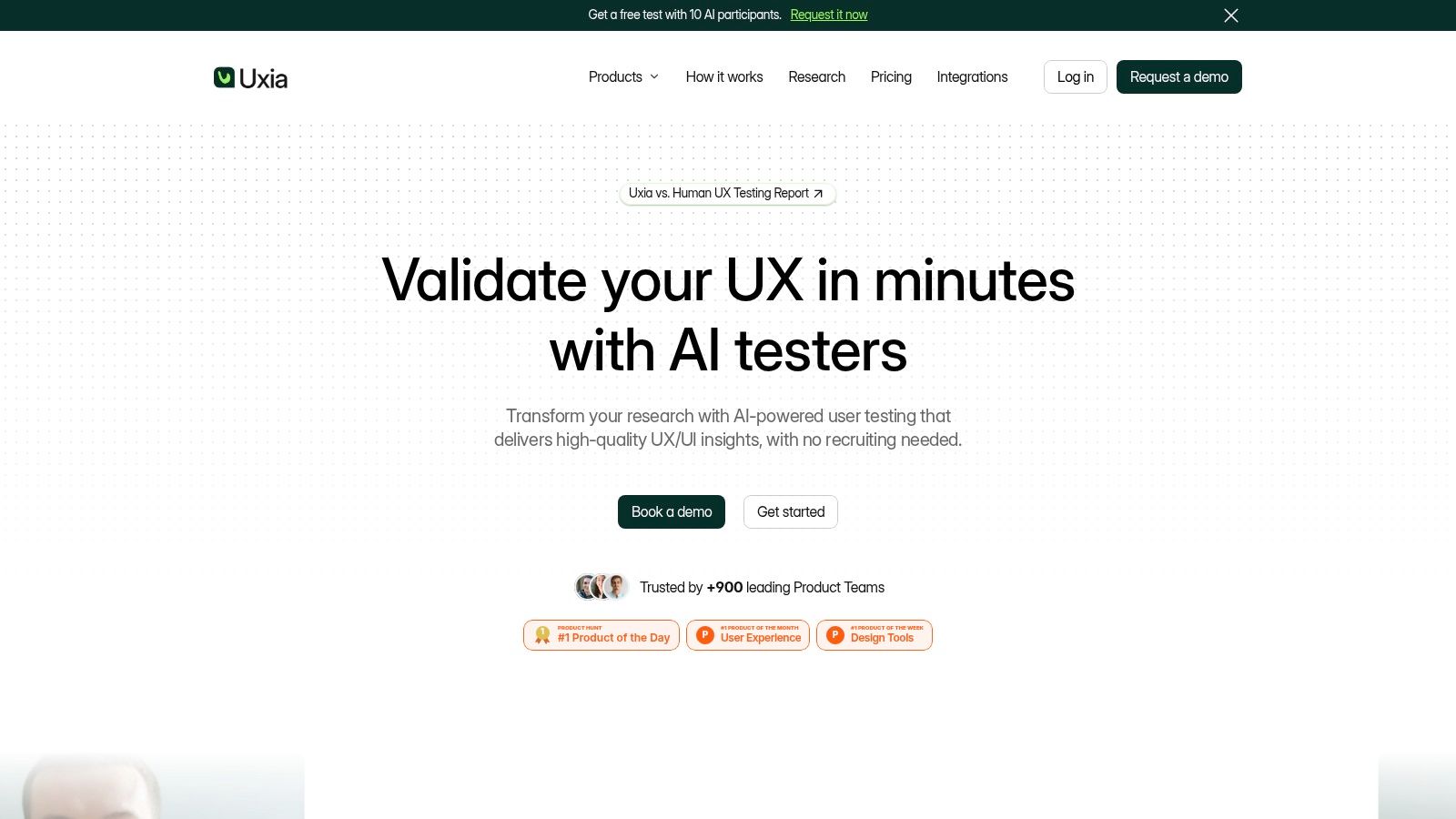
Uxia owns the validation slot in this stack. It lets product teams test a prototype, live flow, or design concept before engineering commits time to it. Upload images, video, or a clickable mockup, define the mission and audience, and the platform generates synthetic participants matched to the brief. They behave like targeted users, think aloud, identify blockers, and return transcripts, heatmaps, and prioritized findings in a shareable report.
Why it earns a seat
Choose Uxia when the team needs structured evidence on whether a design is understandable, trustworthy, and usable. The platform states that it can be faster and more affordable than traditional testing, and its recognition includes Product Hunt awards and Gartner's “Diamond startup to watch in the Synthetic Population and Behavioral Simulation space.” That makes it a practical option when sprint pressure is high and decisions cannot wait for a full research cycle.
Its strongest workflow advantages are clear:
Fast validation: Run tests in minutes rather than weeks, keeping design decisions on schedule.
Targeted synthetic participants: Set demographic and behavioral profiles instead of collecting generic reactions.
Actionable outputs: Think-aloud transcripts, heatmaps, SUS and SUPR-Q benchmarks, and visual reports turn feedback into design changes.
Enterprise readiness: Branded workspaces, audience enrichment, SSO, and SCIM support larger research programs.
Low-risk trial: Uxia offers a free test, often with up to 10 AI participants, so teams can evaluate it against a live design problem.
Practical rule: Run Uxia before the engineering sprint. Friction is cheaper to fix while screens and flows are still easy to change.
Where it fits and where it doesn't
Uxia earns its place after ideation and production design, before launch. Use it for prototype checks, flow validation, accessibility and trust concerns, and evidence that stakeholders can review without sitting through every session.
Skip it for open-ended brainstorming, visual exploration, or pixel-level UI polish. Keep moderated interviews and direct human observation for work that requires emotional nuance, follow-up questions, or close attention to behavior. Synthetic testing accelerates validation, but it does not replace every form of research.
That workflow position makes Uxia the only tool in this shortlist dedicated to checking whether a design works before it ships.
Best use case: Prototype checks, flow validation, accessibility and trust issues, and stakeholder-ready evidence.
Skip it for: Early ideation, visual exploration, and final UI polishing.
Website: Uxia
2. Figma
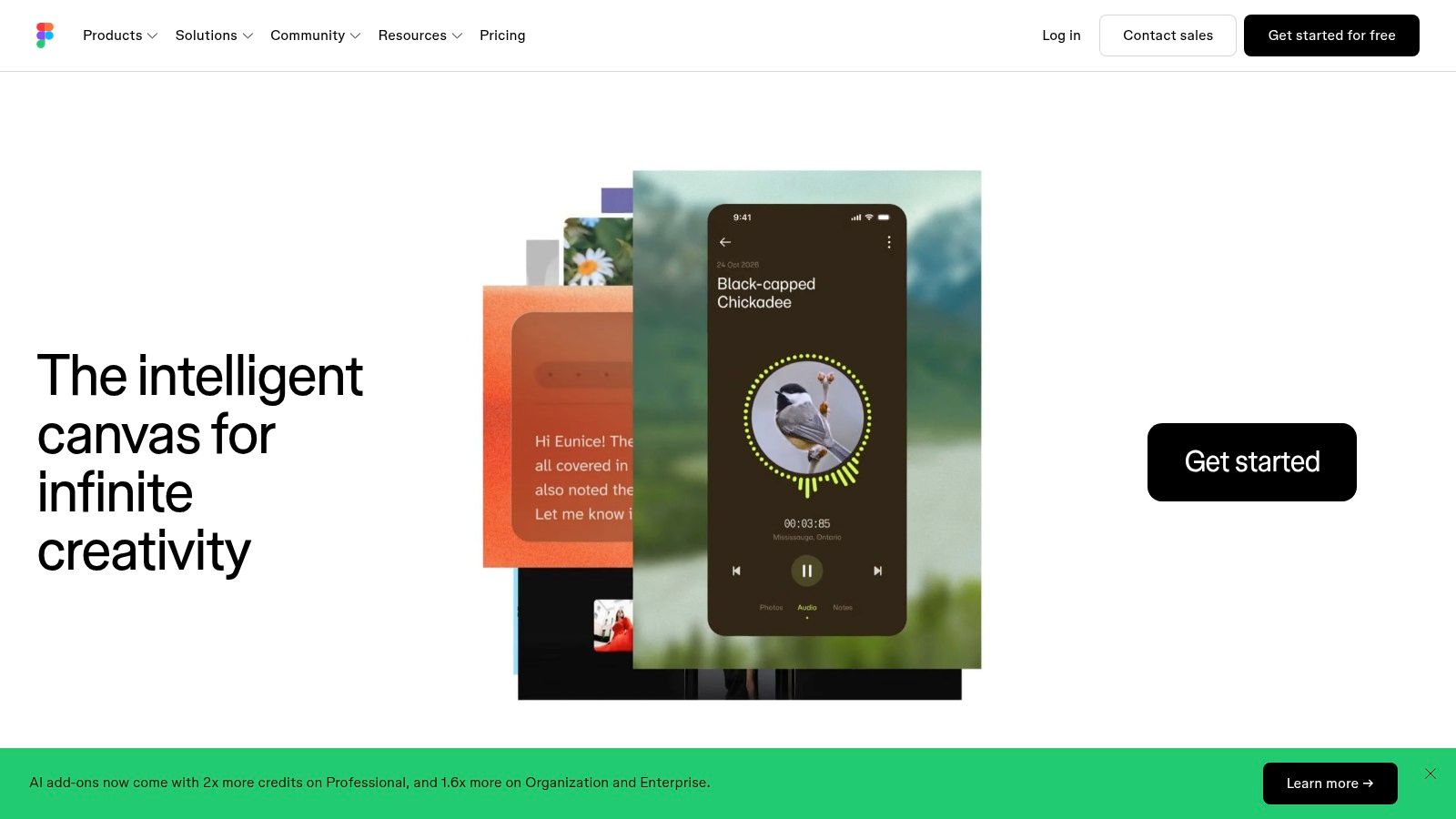
Figma is still the default production design environment, and its AI layer makes it more valuable, not less. The strongest reason to keep it at the center of your stack is that it doesn't ask teams to leave the system they already use for permissions, files, components, and collaboration. Figma AI and Figma Make extend that base with prompt-to-prototype workflows, image editing, cleanup automation, and fast interactive exploration.
Why it stays on top
Use Figma when the concept is real enough that consistency matters. It's the tool for multi-screen layouts, design system-aware iteration, component cleanup, and polished handoff. The AI credit model is worth watching, especially for heavier users, but the advantage is still clear, native integration with the file structure teams already trust.
The best part is scope. Figma now spans design, FigJam, Slides, Sites, and prototyping, so you can move from concept to presentation without jumping between disconnected tools. That keeps design systems intact, which matters more in 2026 than in earlier AI tool waves.
Uxia's Figma Make guide is worth pairing with this workflow if you want a practical bridge between generated screens and validation.
Use it for this, skip it for that
Figma should handle production design, not first-draft ideation from scratch. It's strongest when the product direction already exists and the team needs precision, not chaos. If you need quick rough concepts, Uizard or Relume will get you there faster.
Use Figma for: component-based design, interactive prototypes, system cleanup, and team collaboration.
Skip Figma for: loose brainstorming and website structure ideation.
Website: Figma
3. Framer
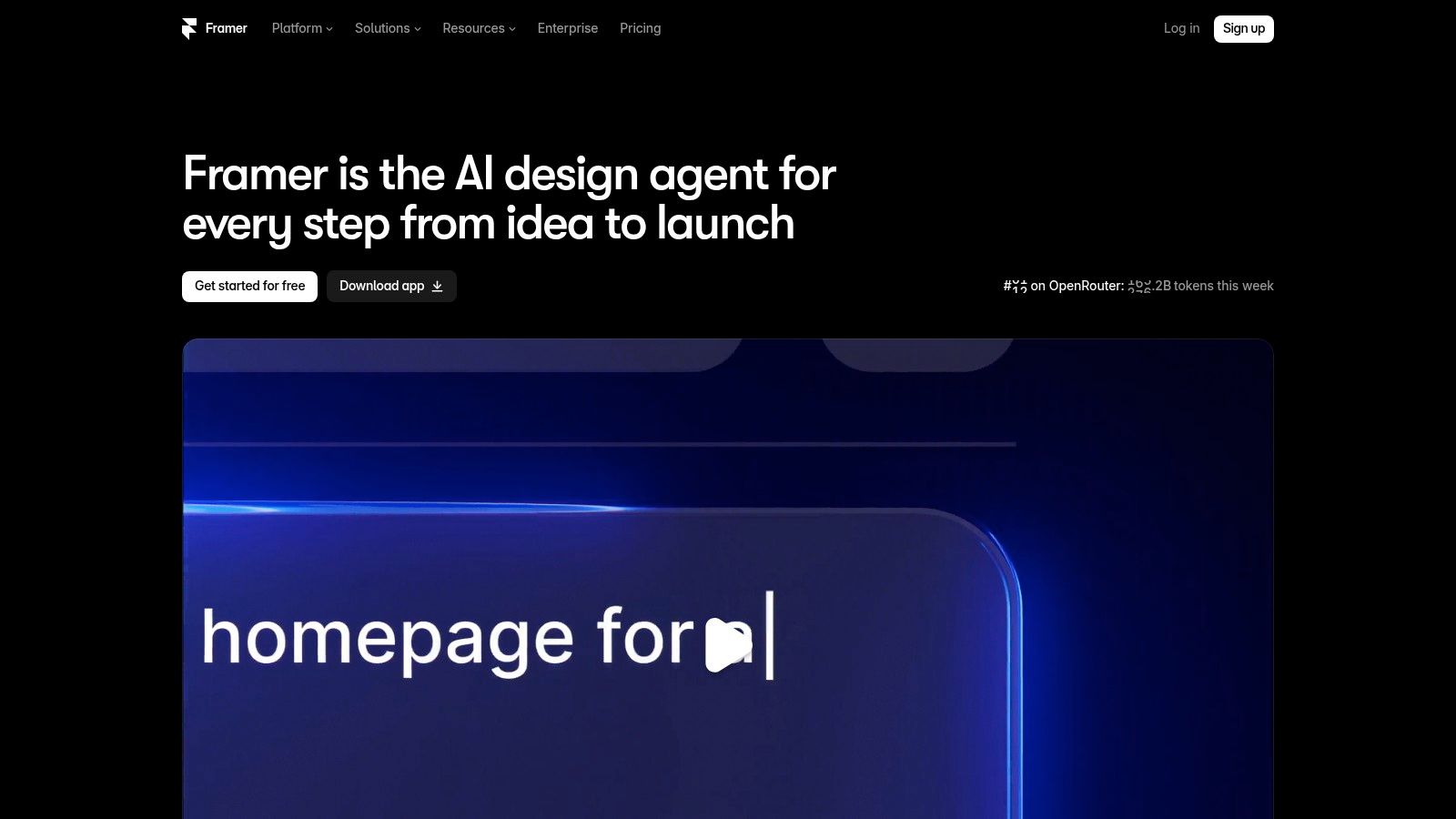
Framer is the right answer when the job is to get a marketing site or launch page live fast. It turns text prompts into websites, then lets designers refine them in a visual editor, so the path from idea to live page is short enough to matter in launch-heavy teams. Its AI Agents layer adds automation for copy, localization, and experiments, which makes it more than a one-off generator.
Best for web-facing product work
Framer earns its seat when product designers need to ship landing pages, campaign pages, or lightweight web experiments without waiting on engineering. The hosted CMS and built-in publishing path make it a practical choice for teams that need speed with minimal technical friction. Public pricing and credit-based usage make it easier to plan than some opaque AI tools.
That doesn't mean it replaces your core product design stack. It does the web-facing layer well, but app UI work still belongs in Figma or code. If your team is designing a mobile product or a complex in-app flow, Framer should stay on the edge of the stack.
For designers working from a mobile-first strategy, the workflow logic lines up with the advice in CodeDesign.ai's mobile builder guide, especially when you're turning ideas into public-facing experiences quickly.
Best use case: Launch pages, campaign sites, experiments, and content-driven web assets.
Skip it for: deep in-app product flows and complex system design.
Website: Framer
4. Uizard
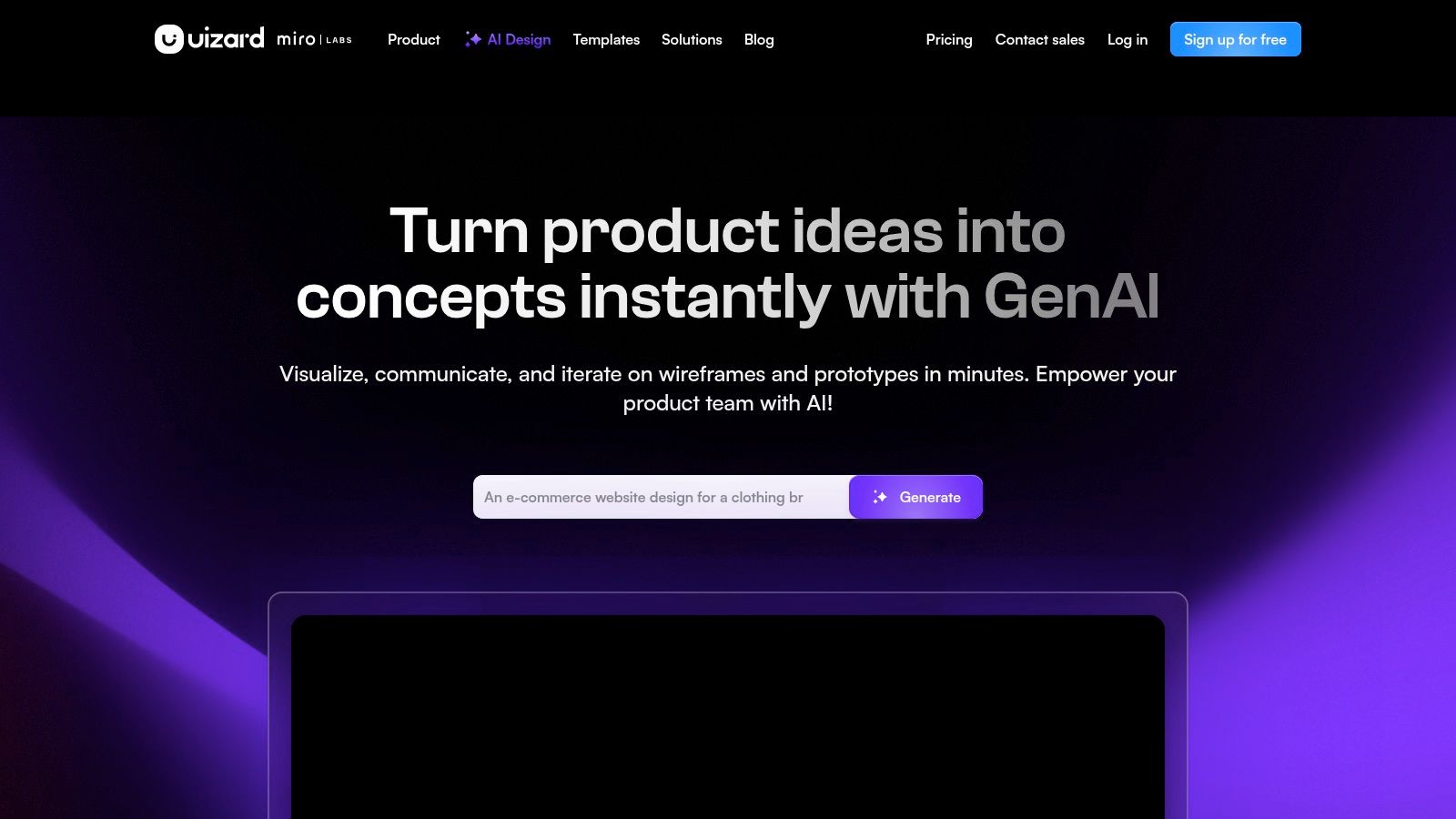
Uizard is the fastest path from rough thought to editable wireframe. It's built for early ideation, not final polish, and that's exactly why it belongs in a serious 2026 stack. If your teammate hands you a sketch, a screenshot, or a half-formed brief, Uizard turns that into a usable starting point fast.
Where it shines early
Uizard is the tool for the messy front end of design work. Autodesigner 2.0 adds conversational iteration, so you can keep refining the output without starting over each time. That makes it useful for stakeholder alignment, quick concept reviews, and low-friction exploration when nobody is ready to commit to a final direction.
Its built-in Design Review and heatmaps make it more useful than a pure generation toy. Paid tiers also include developer handoff options, which helps teams move from idea to a workable artifact without too many intermediate steps.
Uxia's design-tools comparison guide pairs well with Uizard if you're choosing between early ideation and later validation.
The right way to use it
Uizard should feed the rest of your workflow, not end it. Treat its output as a draft, then move into Figma for production polish and Uxia for validation before launch. That sequence keeps speed on your side without confusing rough exploration with final design quality.
Use Uizard for: sketches, screenshots, and rapid concept mockups.
Skip it for: final visual refinement and production-ready interface decisions.
Website: Uizard
5. Relume
Relume is the best pick when the problem isn't visual polish, it's structure. It generates sitemaps, page outlines, wireframes, copy, and style guides from a brief, which makes it ideal for discovery workshops and website architecture decisions. For designers who spend too much time turning vague ideas into something that can be reviewed, Relume cuts straight to the first credible draft.
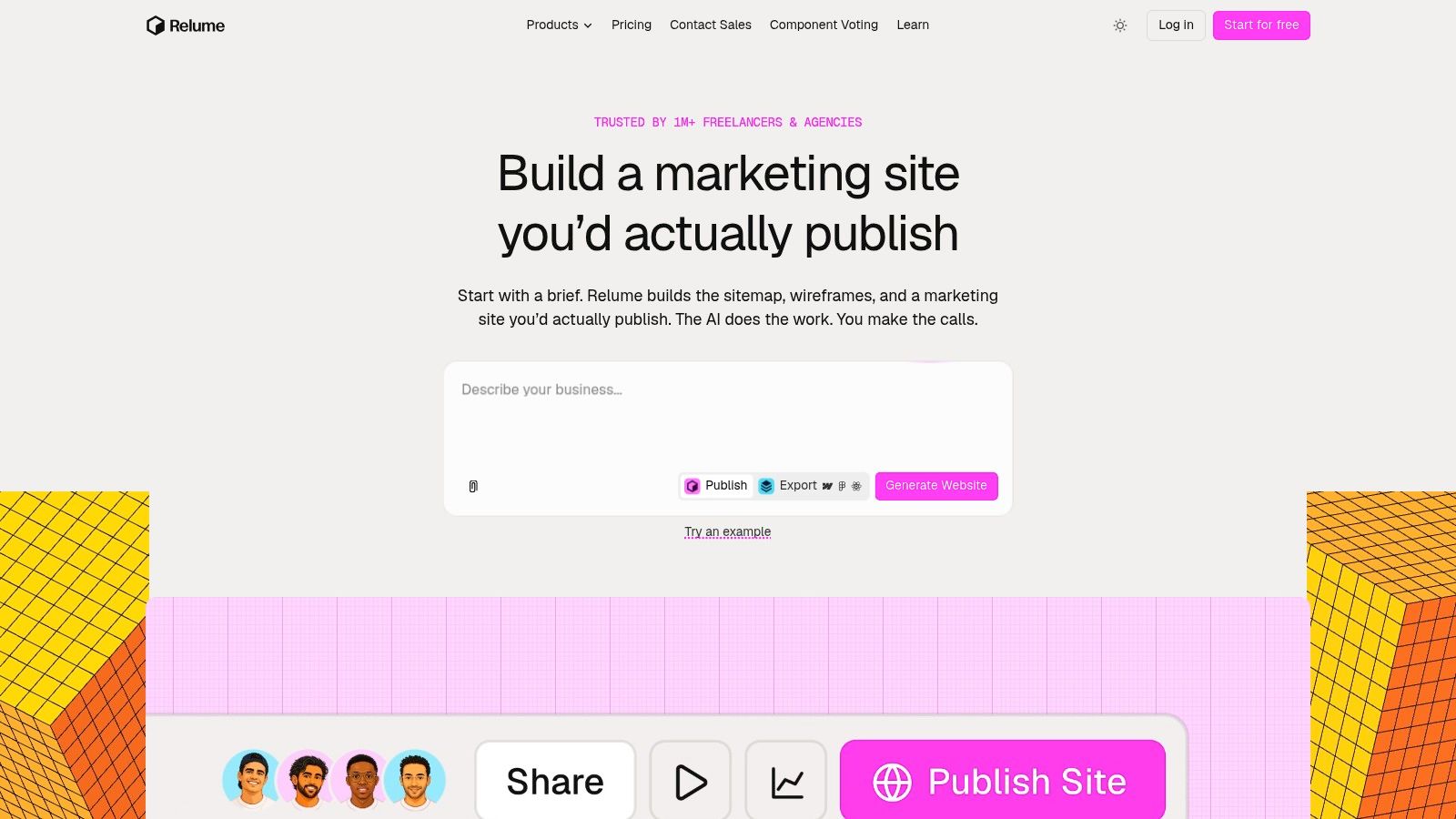
Best for information architecture
Relume is strong because it gives you structure before style. That matters in web projects, where teams often waste time debating page order, content hierarchy, and navigation before they've even seen a coherent baseline. The Figma plugin keeps the output portable, and export paths to Webflow and React make it easier to move from planning into implementation.
The component library is large enough to support real production work, but its core value is speed. Use it when you need an IA baseline that can be critiqued in a meeting, not when you need a complex product flow with lots of edge cases.
MerchLoom's agentic image pipelines piece is a useful adjacent read if you're thinking about how AI-generated outputs are moving deeper into production workflows.
Best use case: discovery workshops, sitemap drafting, web IA, and quick proposal decks.
Skip it for: complex product logic and app-first interaction design.
Website: Relume
6. Maze
Maze belongs in the research slot for teams that want speed without abandoning rigor. It supports AI-moderated studies, concept tests, and surveys, then turns transcripts into themes and shareable reports. The key difference from generic AI helpers is that Maze is built around research workflows, not just content generation.

Good speed, better governance
Maze works well when you need unmoderated testing on prototypes or live experiences and want the results summarized quickly. Its AI Themes, suggested highlights, and customizable reports reduce manual synthesis work, while the MCP connector is useful for teams that want to query research across other AI tools.
The governance angle matters too. Maze says it uses trusted third-party AI providers and doesn't train on your data, which helps teams that care about research privacy and operational control. That makes it a stronger fit for product organizations than generic AI note-taking tools.
For teams comparing validation options, Uxia's Maze alternative guide is the obvious companion read.
Practical rule: Use Maze when you need fast research synthesis with real participant data, then use Uxia when you want synthetic validation before or between live studies.
Where it fits
Maze is strongest for concept tests and usability studies. It's not the right choice for deep ethnography or highly moderated sessions, and it shouldn't be treated as a replacement for human researchers. Use it to keep discovery moving, not to flatten every research question into a template.
Website: Maze
7. v0 by Vercel
v0 is the best choice when the outcome needs to be code, not just a design file. It turns natural language into React and Next.js interfaces, offers live previews, and can deploy directly to Vercel. For design-engineer pairs, that makes the prototype loop much shorter.
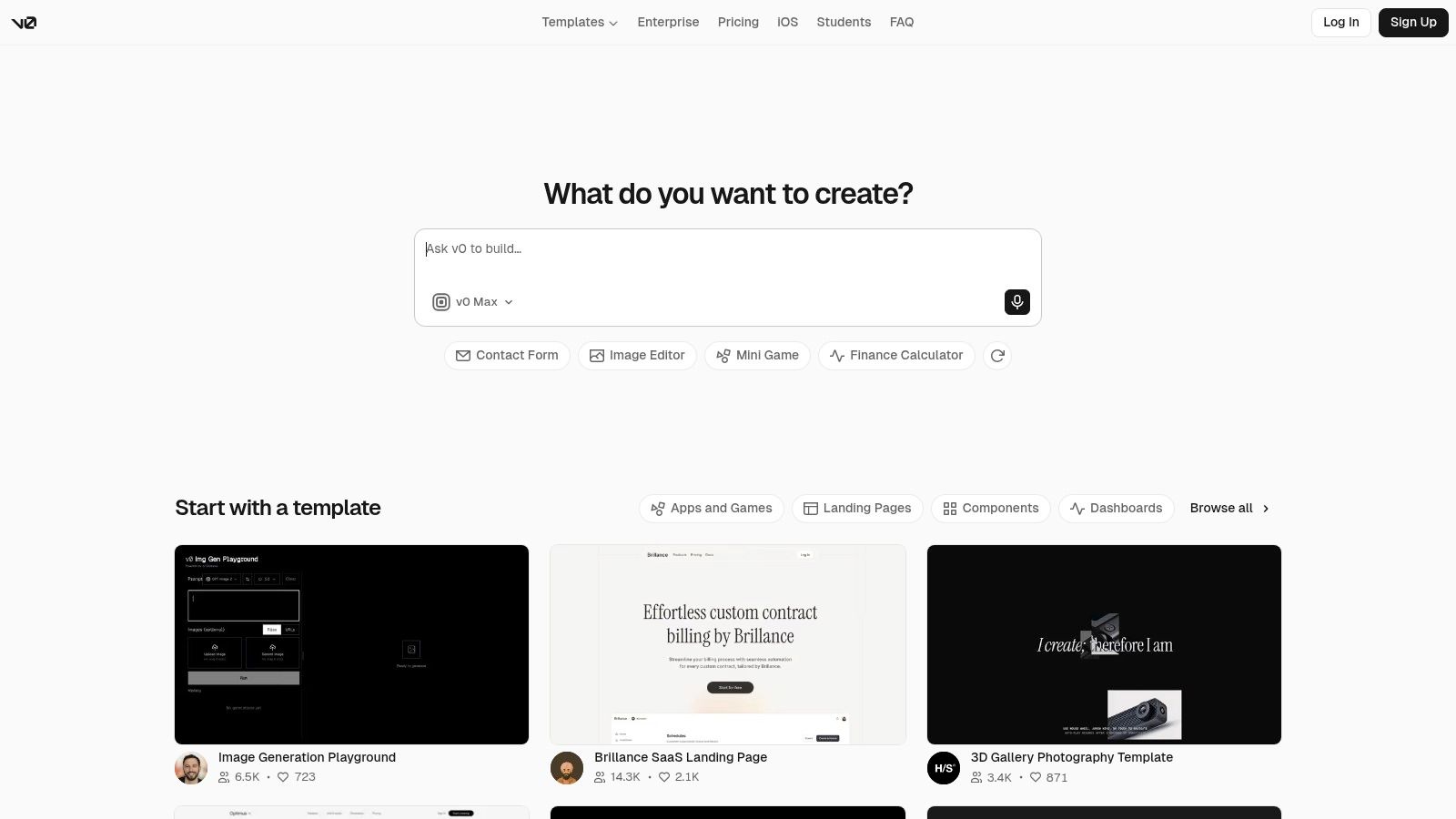
Best for design to code
v0 earns its place when the team wants to see real UI behavior quickly. Guided chat edits make it easier to refine screens without throwing the whole thing away, and the model selection options help experienced users steer outputs more deliberately. The free tier makes experimentation easy, while the pricing structure stays visible enough for planning.
Use v0 when a prototype needs to feel shippable, not when you're still deciding what the product should be. Engineers still need to review and refactor the code, but that's the right tradeoff for teams that want to compress the path from design intent to working interface.
Where it fits in a stack
v0 should sit after direction-setting tools like Uizard or Relume and after production design decisions are mostly settled in Figma. It's the bridge from design into implementation, not a replacement for design thinking. In the hands of a design-engineer pair, it can turn a good idea into something tangible far faster than a traditional handoff.
Website: v0
Top 7 AI Tools for Product Designers, 2026 Comparison
Product | 🔄 Implementation complexity | ⚡ Resource requirements | 📊 Expected outcomes | 💡 Ideal use cases | ⭐ Key advantages |
|---|---|---|---|---|---|
Uxia | Low, upload assets + audience config; no recruiter overhead | Low operational cost; free trial; enterprise plans for advanced features | Fast, prioritized UX findings: transcripts, heatmaps, SUS/SUPR‑Q | Rapid usability validation across sprints; scale research without recruiting | High-speed synthetic testing; automated, exportable insights |
Figma (Figma AI + Make) | Medium, integrates into existing files and design systems | Credit‑based AI usage per seat; paid tiers for full features | Faster prototyping, image edits, cleaned design systems, interactive prototypes | Teams needing end‑to‑end design, collaboration and prototyping | Native integration across design stack; predictable credit model |
Framer (AI site + Agents) | Medium, prompt→site plus visual edits; Agents add workflow complexity | Workspace credits with clear pricing and add‑ons | Production websites from prompts; localization and experiment automation | Marketing sites, landing pages, quick web experiments without code | Very fast concept→live site; Agents automate site workflows |
Uizard (Autodesigner 2.0) | Low, prompt/sketch/scan inputs; conversational iteration | Generous generation limits on Pro/Business; brand features on paid tiers | Editable multi‑screen mockups for early exploration | Early ideation, stakeholder alignment, rapid wireframing | Rapid idea generation; converts sketches/screenshots into editable UIs |
Relume | Low, brief→sitemap/wireframe with exports to Figma/Webflow/React | Seatless collaboration; may require Figma/Webflow for handoff | Structured IA, wireframes, copy and style guide ready for handoff | Discovery workshops, information architecture and rapid proposals | Speeds IA baseline; large component library and export paths |
Maze (AI‑moderated) | Medium, connects to prototypes; AI moderates and summarizes | Plan‑gated AI features; integrates with external AI providers; privacy options | Themed research summaries, follow‑ups, shareable reports | Unmoderated usability tests, concept testing, continuous discovery | Balances speed and rigor; governance for AI in studies |
v0 by Vercel | Medium, NL→React/Next.js code with guided edits; dev review needed | Token‑based billing; free tier available; best with Vercel stack | Component/code generation and deployable prototypes to Vercel | Design‑engineer pairs accelerating design→coded prototype workflows | Shortens design→code loop; direct deployment and clear pricing |
How to Build Your Own 2026 Stack
The smartest 2026 stack is simple. Pick one tool for ideation, one for production design, one for validation, and one for design-to-code. That means Uizard or Relume for early exploration, Figma for the core design system, Uxia for synthetic UX testing, and v0 or Framer when the output needs to become a live interface or site.
The trap is trying to make one product do everything. That's how teams end up with weak ideation, messy handoff, and untested flows. The better move is to assign each tool a job and keep the workflow moving in a straight line from rough idea to validated design.
The evidence for that stack is clear in 2026. Designers are using AI routinely, not occasionally, and many teams now work across several tools at once (AI in Design 2026). Product and UX teams are also using AI across generation, collaboration, and validation, which means the stack has to support all three stages, not just make pretty mockups (DesignLab UX and Product Design Survey 2026).
The clearest workflow is this. Start with a rough concept in Uizard or Relume. Move into Figma when the design needs structure and consistency. Use Uxia early and often, before the sprint starts, so you're testing the flow before engineers commit time. Then use v0 or Framer when the job becomes shipping code or publishing a live page. That sequence keeps the team focused on decisions that matter.
If you want the fastest path to better product decisions, add Uxia to your stack now and run your next prototype through it before the engineering handoff. Visit Uxia, test one real flow, and use the findings to tighten the design before the sprint starts.