
A designer is debating whether the navigation should sit at the bottom or the top. The answer changes with the platform, but copying a platform convention without testing it can leave people unsure where they are, or how to get back to a task. The same tab bar can feel familiar on an iPhone and awkward on Android or responsive web.
Tab bar navigation isn't a solved styling problem. Placement, capacity, labels, and keyboard behavior shape how people understand a product's structure. Treat platform guidance as an informed starting point, then validate the choices against your users, tasks, and devices.
Why Tab Bar Decisions Are Harder Than They Look
A team often starts with the visible details: which icons to use, whether labels should appear, and what color marks the active item. Those choices matter, but they sit on top of a more consequential decision: which destinations belong in the bar at all? If the items don't represent the same level of the product, users have to infer a hierarchy the interface hasn't made clear.
Placement introduces another variable. A bottom bar may feel natural on an iPhone, while a top-positioned control or side rail may fit a different platform or screen size better. When the same design crosses platforms, gesture areas and system navigation conventions also change. A layout that appears balanced in a static prototype can compete with device gestures or make returning to the previous screen less predictable.
Make the decision about the task
Start by writing down the destinations users need to switch between during a typical session. Then ask whether those destinations are peers, whether people need to move between them without losing their place, and whether the proposed bar remains easy to find on each target device. If an item is really an action, a filter, or a deeper screen, it may not belong alongside top-level destinations.
Don't treat a familiar pattern as proof that a specific implementation works for your product. Compare alternatives with realistic tasks: can someone find a destination, switch to it, and return to their previous context without guessing? Observe not just whether a person taps the expected control, but whether they understand what it will do.
Design principle: Platform conventions are useful inputs. They don't replace checking whether the navigation matches your product's information architecture.
A deliberate test plan helps teams resolve placement and capacity questions before visual polish makes the initial design feel too settled. The practical goal is to choose a navigation model people can understand across platforms, not to make every version look identical.
What Tab Bar Navigation Actually Is
Tab bar navigation is a structural choice, not a row of icons at the edge of a screen. It gives users a persistent way to move among the product's top-level areas. Think of a home screen: each tab leads to a primary place in the product, and switching tabs should feel like moving between those places rather than drilling further into one of them.
That distinction clarifies what belongs in the bar. A product's main account area might be a top-level destination, while an individual account detail screen is content reached from it. Put peer destinations in the bar; put deeper content in a navigation stack. If the bar mixes a major product area with a one-off action or a screen nested under another destination, people have to work out why those choices sit together.
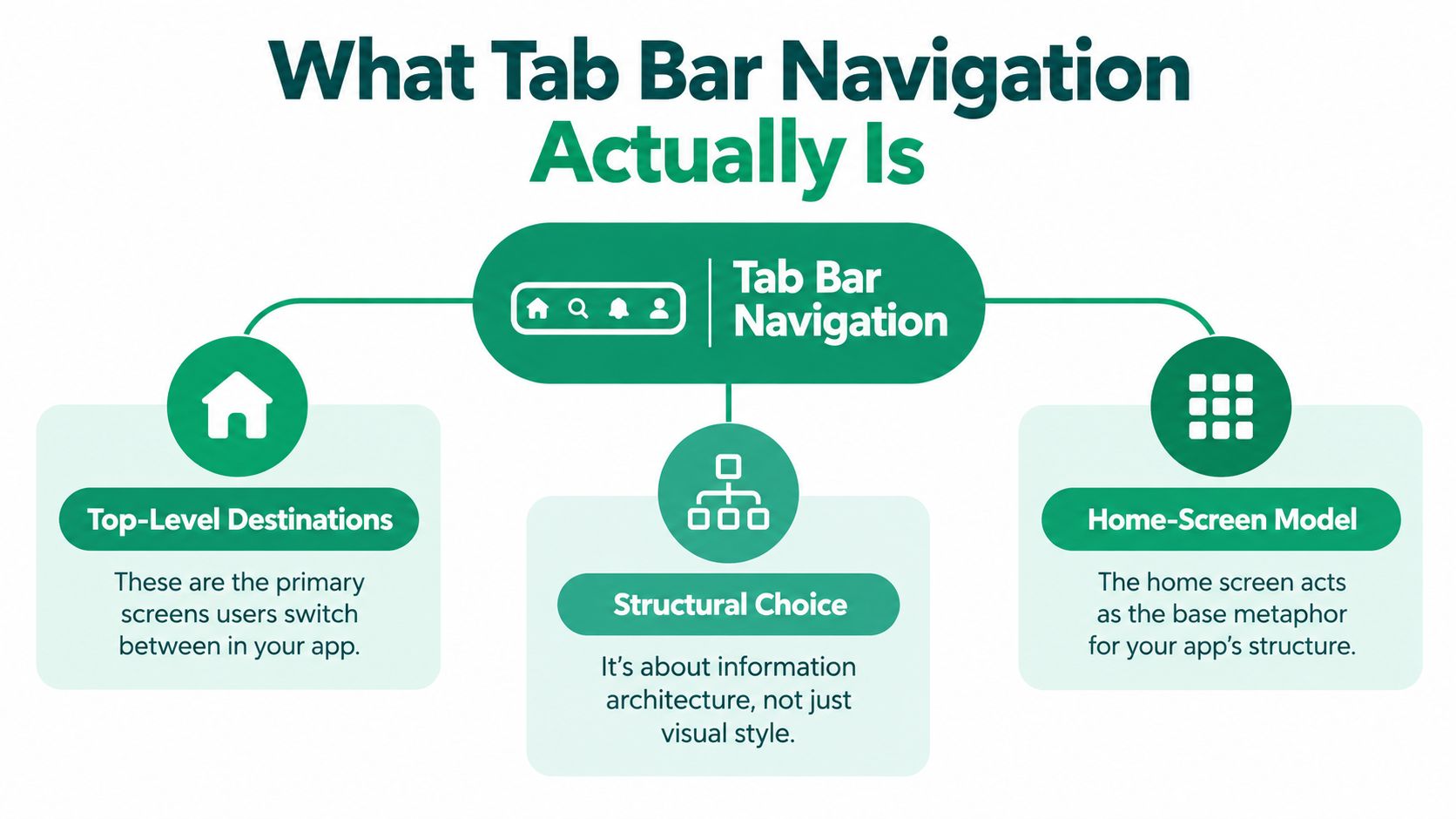
Apple defines a tab bar as a way to move among an app's top-level sections. Its guidance also warns against hiding or removing the bar during navigation, and against moving users between tabs automatically, because both can disrupt their sense of location. Read those principles as a navigation model: the bar remains a map of available areas, and the selected destination reflects where the person chose to go. Apple's tab bar guidance provides a useful reference for applying that model on iOS.
The home-screen metaphor is useful beyond mobile apps. Whether the control appears at the bottom, top, or within a responsive layout, it should communicate a stable set of destinations. For more context on how navigation patterns fit together, AppLighter's overview of app navigation UX patterns is a helpful companion.
iOS, Android, and Web Compared
Cross-platform teams often copy a bottom bar onto every surface and call it consistency. That instinct is expensive. iOS guidance favors a persistent bottom tab bar, Material Design's compact bottom navigation serves a set of equally important destinations, and older Android UX guidance pushed top placement to keep app controls clear of system navigation. The web adds its own choice: a top bar suits compact layouts, while a side rail can make destinations easier to scan on wide screens. None of these defaults is wrong. Each one is a variable worth validating against your own product.
Platform | Default placement | Capacity limit | Key conflict to design around |
|---|---|---|---|
iOS | Bottom tab bar | Apple's iPhone guidance generally limits the bar to five primary destinations; Apple's guidance describes the pattern. | Persistent access and clear separation from deeper navigation |
Android compact layouts | Bottom navigation in Material Design; older Android UX guidance favored top placement | Three to five equally important destinations in compact layouts, according to Material Design's navigation guidance | System navigation gestures, label space, and platform expectations |
Responsive web | Top bar or side rail, depending on available layout | Choose based on the information architecture and available space, rather than shrinking a mobile bar | Breakpoints, orientation, and the return path through browser or app navigation |
Material Design defines compact layouts as widths below 600dp, recommends keeping destinations consistent across screens, and advises transforming navigation rails into navigation bars on smaller screens instead of showing both at once. That is a layout decision, not permission to squeeze a desktop rail into a narrow viewport. Material Design's compact navigation recommendations are especially useful when the same information architecture needs to adapt across phone and tablet.
Test behavior, not platform loyalty
For each version, test destination discovery, gesture conflicts, and back-navigation behavior. On a phone, ask whether a bottom control interferes with the system gesture area. On a wider screen, check whether a rail makes the available sections clearer or just takes space from the main task. On the web, verify that switching destinations does not make browser back behavior confusing.
Matching placement pixel-for-pixel across platforms proves nothing about comprehension. Use mobile app usability testing to structure task-based checks, then compare how people locate and revisit destinations on each device. The information architecture can stay consistent even when each interface adapts to its platform's conventions.
Labels, Icons, and Capacity
Capacity is an information-design constraint, and the failure mode changes with every item you add. As noted earlier, Apple's iPhone guidance historically advises no more than five primary destinations, with a "More" tab used in older guidance to expose additional sections rather than crowding the bar. What matters in practice is not the ceiling itself but what the bar looks like as you approach it.
At three destinations, every tab can carry an icon and a full label, so recognition is cheap. At four, labels start to compress, and translated strings truncate first. At five, inactive items often collapse to icons alone, which is where ambiguous glyphs become a real problem: a compass, a grid, and a globe can all read as "Explore" depending on the product. Material Design's bottom-navigation guidance prescribes this progression, keeping the label on the active item while inactive ones drop their text as space runs out. Treat that behavior as a fallback, not a target.

Run the label check on the prototype
First, confirm that every item names a destination in language users recognize. Then check whether each icon still makes sense without its label, especially for unfamiliar features or audiences reading translated text. Finally, review how active and inactive items differ: if selection depends on color alone, the state is easy to miss.
Build and compare versions at three, four, and five destinations if the information architecture could support more than one configuration. Ask first-time users to identify each destination, then switch between them. Include longer translated labels where relevant, and note whether people can still tell which tab is selected. A compact bar that looks tidy but leaves people guessing is a failed trade-off.
Accessibility Beyond Touch Targets
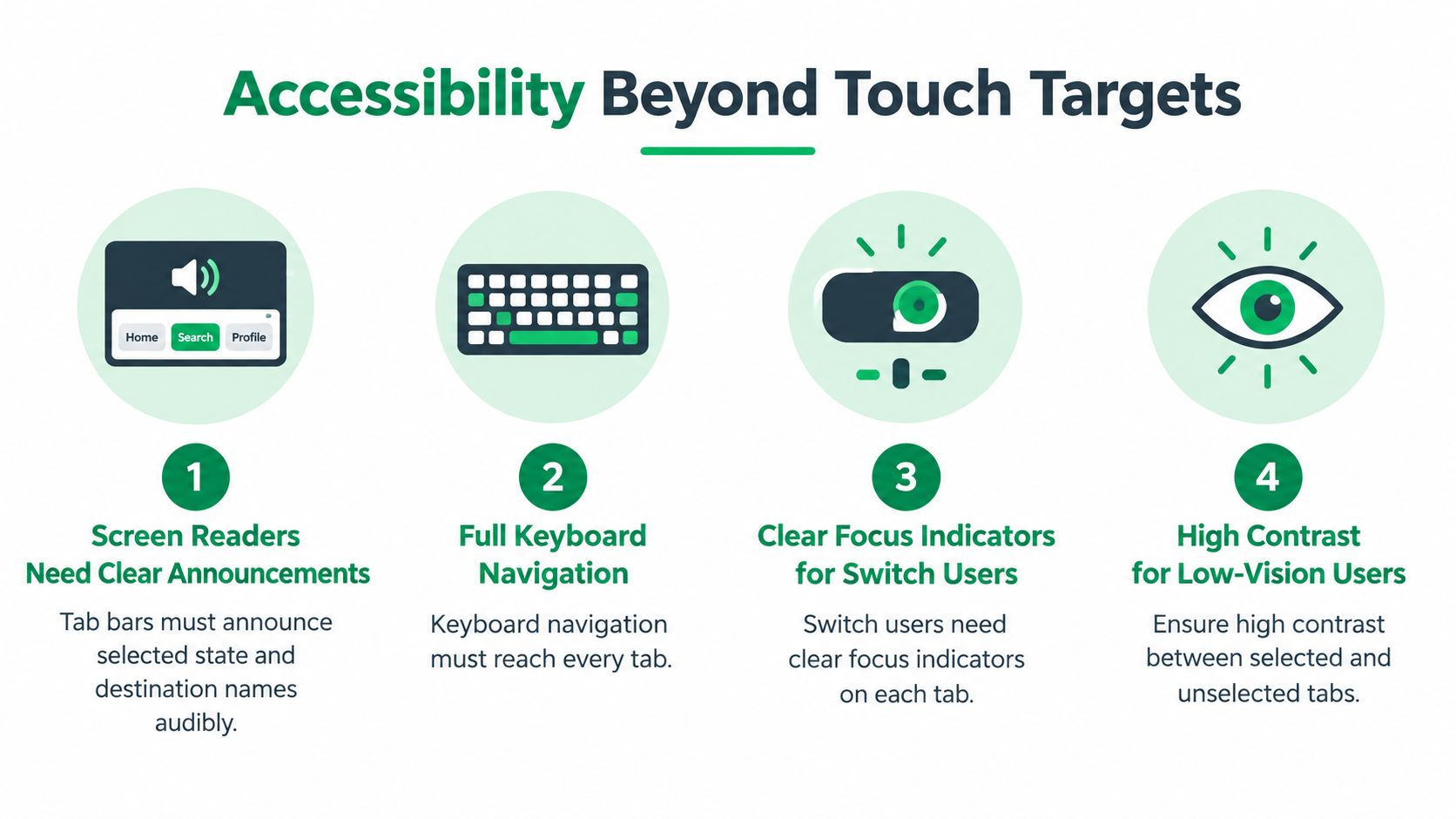
A tab bar can look clear and still be difficult to use with a screen reader, keyboard, switch control, or magnification. Accessibility depends on programmatic meaning and predictable interaction, not only visual contrast or touch size. The selected destination needs to be exposed as selected, and each tab needs a clear relationship to the content it controls.
For web interfaces, the implementation may use the tablist, tab, and tabpanel roles, with properties such as aria-selected and aria-controls to expose state and relationships. Don't add these roles mechanically: the actual keyboard behavior needs to match the tabs interaction model. WAI-ARIA's guidance on tab controls says Tab and Shift+Tab generally move focus between components, while arrow keys move focus within a composite component. When tabs act as controls, they should follow the keyboard interaction defined by the Tabs Pattern.
Check the interaction, not just the markup
A screen-reader user should be able to hear each destination and identify the selected one. Keyboard users should be able to move through the control predictably, activate a destination, and continue into its content without losing focus. Switch-control users need an obvious focus indicator, while low-vision users need a selected state that doesn't rely on color alone.
Test what happens after a tab changes: does focus stay where the user expects, and does the updated panel make sense when announced? Check whether inactive panels are hidden from assistive technology, whether enlarged text makes labels ambiguous, and whether icon-only items remain understandable under magnification. A practical accessibility testing workflow can help teams turn these checks into repeatable tasks.
Use this walkthrough to review keyboard movement, selected-state announcements, and focus behavior:
Common Anti-Patterns From Real Products
A persistent tab bar is a location cue. Three common decisions weaken that cue: hiding the bar partway through navigation, putting unrelated hierarchy levels beside each other, and making the selected state visible only through a subtle color shift or an obscure icon. Each asks users to recover information the interface could have kept clear.
Hiding the bar to reclaim space can seem reasonable on a detail screen, but it removes the map just when someone may want to switch areas. Keep the bar available through navigation where the product's model calls for it; use a stack for deeper screens rather than making the global control disappear.

Mixing destinations with actions creates a different problem. A major product area and a one-time command don't serve the same navigational purpose. Move the action into the screen where it's relevant, or give it a distinct control, rather than asking users to interpret it as a destination. For a related look at how control choice affects discoverability, see this discussion of pull-down menu design.
Using color or micro-icons as the only active cue leaves people guessing when the icon isn't familiar or the state difference is hard to see. Pair recognizable labels with a clear selected treatment, and check that people can identify both the current destination and the alternatives. The fix is usually structural or communicative, not a full redesign: restore the persistent map, separate unlike items, or make the active state explicit.
Validating Tab Bar Designs With Uxia
Treat the prototype as a question to test, not a picture to approve. Uxia lets teams upload image or video prototypes, define a mission and audience, and have synthetic testers work through flows while describing points of friction. The resulting transcripts and summaries can help surface confusion around navigation, labels, trust, and accessibility.
Turn design questions into missions
Test placement and platform behavior. Prepare versions that reflect the placements you're considering for iOS, Android, and responsive web. Give testers a realistic task that requires finding a destination, switching areas, and returning to their previous context. Look for hesitation around the control and confusion about how to go back.
Test labels and capacity. Compare versions with three, four, and five items. Ask testers to identify each destination and complete a task that requires switching between them. Include the label behavior and translated or longer wording you expect to ship, then note when an icon alone stops communicating its meaning.
Test accessibility behavior. Include keyboard and assistive-technology tasks where your prototype or implementation supports them. Check whether testers can identify the selected tab, move between options, open the associated content, and recover when focus changes.
Turn observations into a decision
Review the transcripts for specific moments when a person misreads a label, searches for a control, or loses track of the current destination. Then compare those observations against your intended navigation model. A summary is useful for spotting patterns, but the underlying interaction and user context should guide the design decision.
Uxia can support rapid iteration without recruiting and scheduling a new human study for every prototype change. Use it to compare plausible configurations, then confirm important accessibility and platform behaviors in the actual implementation with appropriate devices and assistive technologies.
A One-Page Tab Bar Checklist
Use this checklist in a design review, prototype critique, or implementation ticket. A clear “yes” should mean the team can point to the relevant screen or test, not just agree that the design looks familiar.
Destinations: Does every item represent a peer-level area rather than a deep screen or one-off action?
Placement: Does the bar fit the platform and avoid competing with system gestures or navigation controls?
Responsive layout: Does the navigation adapt deliberately to wider and narrower screens, rather than shrinking the layout?
Capacity: Are there only as many destinations as the information architecture needs, with a clear plan for overflow?
Labels and icons: Can first-time users understand each destination, including when inactive labels are less prominent?
Selected state: Can users identify the current destination without relying on color alone?
Persistence: Does the navigation stay available when users need it, and does switching areas preserve a predictable sense of location?
Accessibility: Are selected state, destination names, and tab-to-panel relationships exposed, with expected keyboard movement and visible focus?
Validation: Have people completed realistic switching and return tasks on the platforms and layouts you intend to support?
A tab bar succeeds when its structure, labels, and behavior agree. Put the checklist beside the prototype, record the uncertain decisions, and test those decisions before treating the design as finished.
Upload your prototype to Uxia, set a navigation mission and audience, and review tester transcripts for friction around placement, labels, and accessibility. Use those findings to compare configurations and choose a tab bar people can understand across the platforms you support.