
A review of 50 popular iOS and Android apps found that 72% of tested user journeys contained at least one poor or failing accessibility experience, even when individual screens appeared compliant (ArcTouch's mobile accessibility review). That finding changes the question teams should ask. The issue isn't whether a screen passes a static check. It's whether a person using VoiceOver, TalkBack, large text, switch access, or an alternative input method can finish the task.
Accessibility testing mobile apps works best as layered journey testing. Automated tools identify measurable defects, real devices reveal platform behavior, and structured task scenarios expose failures that only appear when users move from one screen to the next.
Why Mobile Accessibility Testing Needs More Than a Checklist
A polished interface can still be inaccessible. In a manual evaluation of 50 highly rated Android apps, only about 41% of applicable accessibility guidelines were implemented on average, and 77% of surveyed developers did not use accessibility tools (the Android accessibility study). The study examined visual presentation, navigation, touch interaction, audio and video, and compatibility with assistive technologies. Audio and video performed worst, with only 44% of assessable guidelines implemented.
Those results match the failures that appear in ordinary product work. A button has visible text but no usable accessible name. A modal opens visually, while screen-reader focus remains behind it. A form displays an error in red, but the user never hears that anything changed. A custom tab looks selected, yet its state isn't exposed to assistive technology.
Practical rule: Treat accessibility as a functional path through the product, not a collection of isolated visual properties.
Mobile testing became more concrete when the W3C published WCAG 2.1 on June 5, 2018. The guidance added mobile-relevant considerations for touch interaction, complex gestures, and preventing unintended activation of controls (W3C's WCAG 2.1 announcement). That shared vocabulary is useful, but native iOS and Android behavior still requires platform-specific testing.
A journey-based approach starts with the question, “Can this person complete the task?” Consider an app used to discover community connections. A resource such as find friendship and romance can help illustrate why access depends on the entire flow, including account creation, search, profile review, messaging, and error recovery, rather than on one compliant card or button.
The practical model is simple: scan broadly, test critical journeys manually, and verify the experience on representative devices. The mobile accessibility testing workflow should make assistive-technology users part of the release gate, not a group considered during launch week.
Scoping Devices, Versions, and User Journeys Before You Test
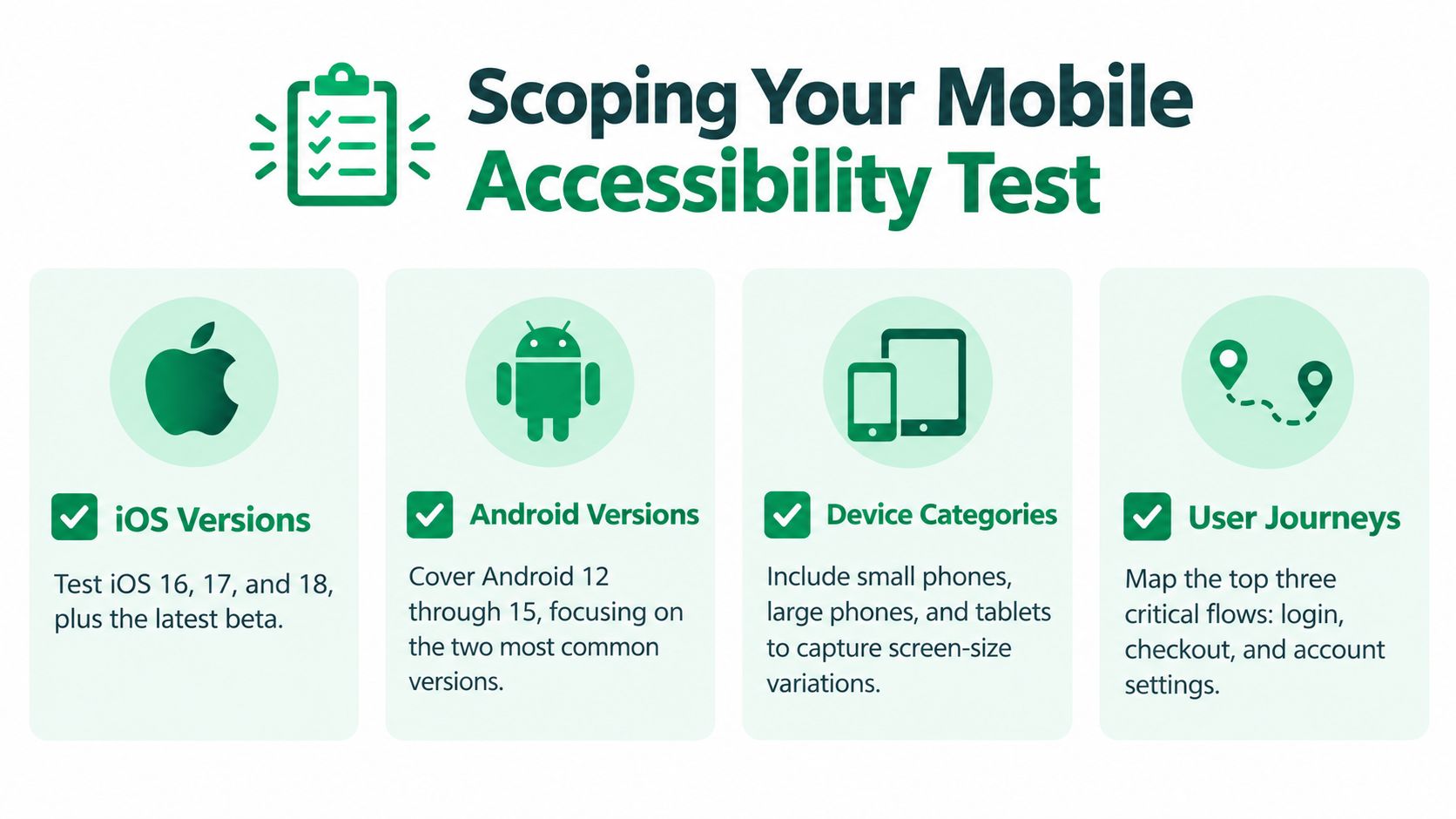
A scanner run without a scope produces noise. Before opening a tool, write down the app versions, supported operating systems, device classes, assistive technologies, and tasks that matter most to users.
Start with platform coverage. Test every supported iOS and Android release, then select small phones, large phones, and tablets where the interface changes materially. Include VoiceOver on iOS and TalkBack on Android. Add Dynamic Type or large text, switch access, external keyboard input, orientation changes, reduced motion, and the error states that can stop a task.
Turn features into journeys
A feature list isn't a test plan. Convert it into a small set of representative missions, such as:
Onboarding: Create an account, handle a validation error, and reach the first useful screen.
Authentication: Sign in, recover an account, and understand an incorrect-password message.
Search and selection: Enter a query, adjust filters, open a result, and return to the results.
Checkout or submission: Review information, change a field, confirm the action, and receive the success state.
Settings: Find a preference, change a toggle, and verify that the new state persists.
Write each mission as an outcome, not as a visual instruction. “Using TalkBack, change notification settings from off to on and confirm the new state” is testable. “Check the notification screen” isn't.
WCAG 2.1 gives teams a cross-platform reference for mobile interaction, while Apple and Android guidance covers native semantics and operating-system behavior. Keeping both in the matrix prevents duplicated work. WCAG helps classify the barrier, and platform testing shows how the barrier affects VoiceOver, TalkBack, switch access, focus, and gestures.
A defensible one-page matrix
Record the following before testing begins:
Build scope: App version, release candidate, and feature flags.
Platforms: Supported iOS and Android versions.
Devices: Small phone, large phone, tablet, and any high-priority customer devices.
Assistive technology: VoiceOver, TalkBack, large text, switch access, keyboard, and reduced motion.
Journeys: Three to five tasks that represent account access, discovery, transaction, settings, or media.
Evidence: Expected outcome, actual spoken output, device, operating system, and reproduction steps.
This prevents teams from equating broad screen coverage with meaningful accessibility coverage.
Automated Checks That Earn Their Place in the Plan
Automation earns its place when it catches objective defects repeatedly and early. Android's official guidance recommends combining manual testing, analysis tools, and automated UI tests rather than relying on one method (Android accessibility testing guidance).
Use Android Accessibility Scanner and the Accessibility Test Framework to identify likely problems such as missing labels, small touch targets, contrast issues, duplicate controls, and traversal-order defects. Compose testing APIs can locate elements, inspect accessibility attributes, and perform actions. On iOS, use platform inspection and accessibility audit tools against the built app, not a browser scan of the company website.
Filter findings by screen, journey, and user impact, not by raw issue count. Ten repeated instances of the same unlabeled icon may represent one component-level fix. A single inaccessible confirmation dialog may block a critical task and deserve higher priority.
What automated checks can establish
Automation is strong where the result has a measurable condition:
A control exposes an accessible name.
A touch region meets the applicable size requirement.
Text or interface elements meet a contrast threshold.
A control exposes a role, state, or value.
A duplicate or hidden element appears in the accessibility tree.
A traversal or focus configuration creates a detectable structural problem.
Automation is weak at meaning and context. It can't reliably decide whether “button 3” tells a user what will happen, whether a spoken sequence makes sense, or whether a gesture-heavy journey remains operable. It also won't understand that a user loses focus after step three and can't recover without sighted assistance.
The following distributions show why category prioritisation should reflect actual audit patterns rather than personal preference.
Where issue categories concentrate in mobile audits
Issue category | UK public-sector share | Ecuadorian native-app share |
|---|---|---|
Focus Visible | 13.3% | Not reported |
Minimum contrast | 13.0% | 9.2% |
Keyboard operation | 10.8% | Not reported |
Reflow | 9.2% | Not reported |
Name, Role, Value | 8.6% | 28.2% element labeling |
Tactile orientation | Not reported | 47.5% |
The UK figures come from mobile-app monitoring by the UK Government. The Ecuadorian findings are included in the same verified evidence base. They point to a practical order of operations: semantics and navigation first, then interaction reliability and visual refinement.
Run the automated pass on every build, gate new regressions, and send ambiguous findings to manual review. For a broader view of tool selection, teams can compare the best web accessibility testing tools in 2026, while remembering that native mobile apps require platform-level inspection.
Manual Testing With Screen Readers and Dynamic Type
Automation tells you what exists in the accessibility tree. Manual testing tells you whether that information forms a usable experience.
Enable VoiceOver on iOS and TalkBack on Android, then complete a critical journey without relying on sight. Move sequentially through controls, activate them using screen-reader gestures, and listen to every announcement. Don't tap around visually and assume the screen reader will follow the same path.

Listen for name, role, and state
For each control, verify three things:
Name: Does the announcement explain the control's purpose?
Role: Does the user hear button, toggle, tab, link, or another appropriate type?
State: Does the output communicate selected, expanded, disabled, on, off, loading, or complete where relevant?
Android's focused TalkBack procedure recommends enabling TalkBack, moving accessibility focus to each item, and checking that the spoken description communicates the element's type and state without unnecessary repetition (Google's TalkBack testing guidance). Apply that to toggles, selected tabs, expandable sections, progress indicators, dialogs, and disabled buttons.
A visual confirmation must have an assistive-technology equivalent. If a form error appears below a field, move focus to the field and confirm the error is announced. If a save action displays a temporary message, confirm the message reaches the screen reader. If a modal opens, focus should enter the modal and return sensibly after dismissal.
Test text, orientation, and alternative input
Apple's Human Interface Guidelines state that apps should ideally support text enlargement of at least 200 percent, with iOS and iPadOS defining a 17-point default and an 11-point minimum for the platform's text styles (Apple's accessibility guidance). Test the largest supported Dynamic Type setting, then inspect forms, dialogs, navigation bars, tables, and checkout or sign-up screens for truncation, overlap, and hidden actions.
Repeat the same journey after changing orientation. Enable reduced motion and confirm that transitions don't prevent understanding. Use switch access and an external keyboard where the product supports those inputs. A control that works with a direct tap may still be unreachable through sequential navigation.
Log evidence as the user experiences it. Capture the exact spoken excerpt, the control's visible label, the screen or journey step, the device and operating system, and the expected announcement. A useful defect says, “TalkBack announces ‘button' after the user reaches the checkout confirmation control,” not merely, “Checkout isn't accessible.”
For teams supporting family or care contexts, an accessibility statement for caregivers can provide helpful language for explaining access commitments, but it doesn't replace testing the product itself.
Touch Targets, Contrast, and the Twenty-Four-Pixel Rule
Touch failures are physical interaction failures, not just visual design defects. A user may understand an icon perfectly and still miss it because the active region is too small, too close to another control, or different from the visible artwork.
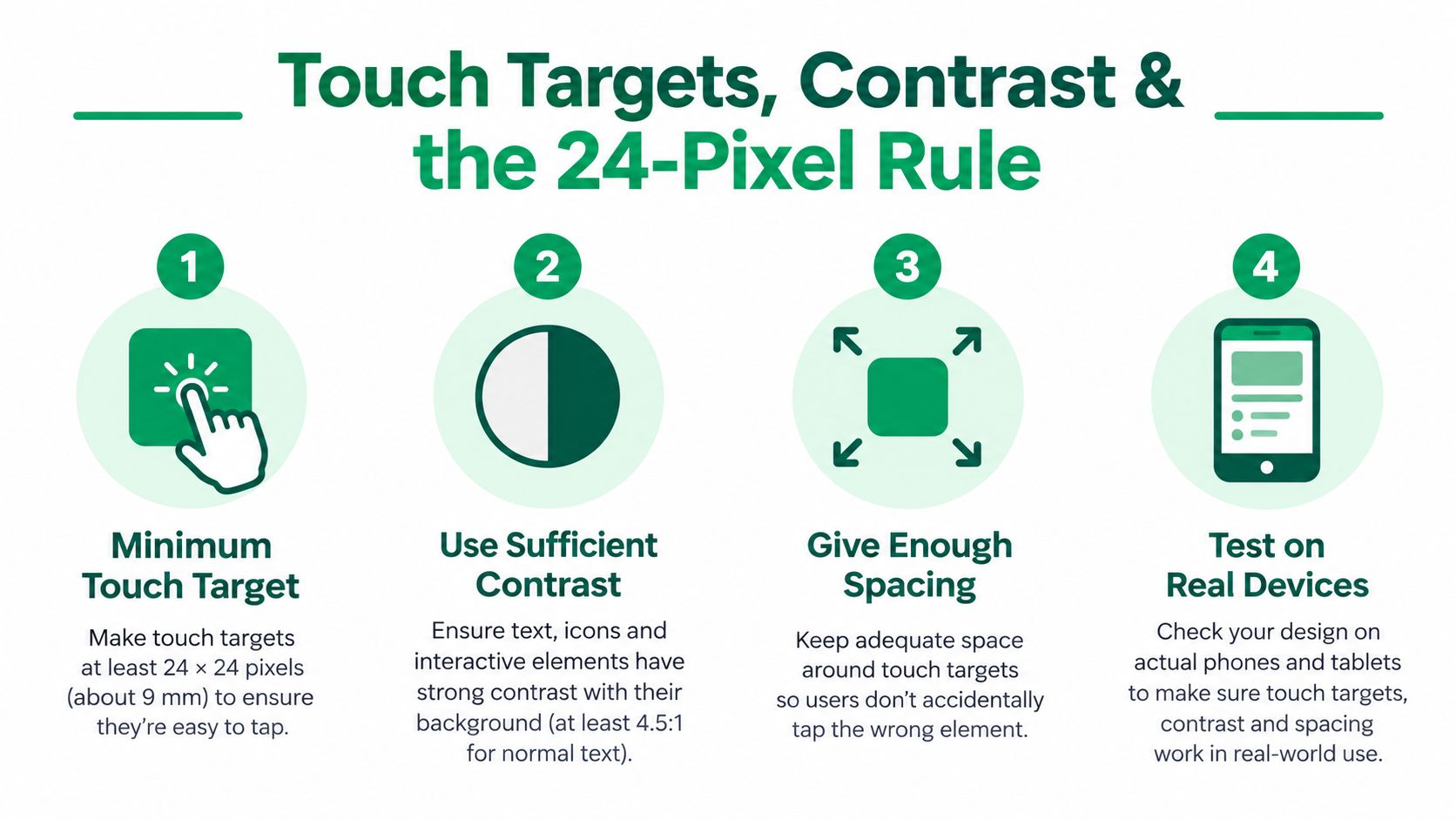
WCAG 2.2 mobile guidance says pointer-input targets should generally be at least 24 by 24 CSS pixels, except where defined exceptions apply (W3C's mobile WCAG 2.2 guidance). Apply the threshold to buttons, links, tabs, checkboxes, icon-only controls, and dismiss actions.
Measure the hit area, not the artwork
A small icon can still pass if its clickable container reaches the required size. Conversely, a visually large label may fail if only a small part of it responds to touch. Inspect the actual interactive region in the built app and test adjacent controls with repeated taps.
Contrast tools are useful for measurable color relationships, but contrast alone doesn't prove usability. Check light and dark modes, disabled states, focused states, error states, and text after enlargement. A control can have adequate contrast and still lack a visible focus indication or a meaningful spoken label.
Reflow needs the same distinction between appearance and behavior. An emulator can show that enlarged text pushes a button below the fold. A real device session reveals whether the button remains reachable, whether focus moves to it, and whether a keyboard or switch user can activate it.
Measure early in prototypes, then confirm the implementation. A clickable prototype can suggest a generous hit region while the production binary exposes only the visible icon.
Use prototypes for early layout and target checks. Use simulators for repeatable reflow and orientation scenarios. Use real devices for final hit-region, gesture, screen-reader, and focus behavior. That division keeps the process efficient without confusing an approximation with proof.
Emulators, Real Devices, and Where Synthetic Users Fit
A test environment answers only part of the accessibility question. Emulators and simulators support fast checks for layout, text scaling, orientation, and early journey flows. Physical devices are needed to validate TalkBack, VoiceOver, touch response, focus transitions, system settings, and hardware-specific interaction.
Use emulators or simulators while the interface is changing rapidly. They make repeated enlarged-text, orientation, and navigation checks inexpensive. They also expose layout regressions before a tester spends time on a full screen-reader pass with a physical device.
Their limits affect journey testing. A simulator may not reproduce the timing of focus changes, the feel of a crowded touch region, a gesture conflict, or the behavior of an accessibility service on a particular device. Once a flow is stable, run its highest-risk paths on representative hardware. A screen that appears correct in a simulator can still fail when a user swipes, listens to focus announcements, or activates a control with one hand.
Use missions for journey-level coverage
Uxia lets teams upload mobile prototypes, define a mission and audience, and review synthetic testers' navigation, transcripts, misclicks, and recurring friction. For accessibility testing, give each mission four clear elements:
A defined goal: For example, change a notification setting and confirm that it persists.
A constrained flow: Specify the starting state, available account, and required outcome.
A relevant profile: Request large text, a screen-reader-oriented interaction model, or another accessibility condition supported by the prototype.
Reviewable evidence: Check skipped controls, repeated labels, confusing order, missed taps, and inaccessible error states.
Synthetic evidence fits between automated checks and manual audits. It can show that a journey repeatedly loses users at the same transition, or that a confirmation state remains unclear even when every screen contains labels.
The output still requires human confirmation. A synthetic participant cannot replace someone who relies on VoiceOver or TalkBack daily, while a prototype may not expose the final accessibility tree or touch regions. Use the results to prioritise work, then reproduce priority failures in the built app.
The ArcTouch review quantified this journey-level gap in the introduction: a screen-by-screen pass can create false confidence when 72% of tested journeys with at least one poor or failing accessibility experience are involved. A task can fail at the transition between otherwise acceptable screens.
For a closer examination of the boundary between synthetic evidence and human research, read synthetic users versus human users.
A practical weekly rhythm is straightforward. Run automated checks against each build, use emulators for layout and reflow, send priority journeys through synthetic missions, and reserve physical-device time for high-impact paths and regressions. This keeps testing efficient while preserving proof that users can complete the task.
Reporting Findings and Shipping Real Fixes
A finding only matters if an engineer can reproduce it and a product team can decide what to do next. Prioritise by user impact, not WCAG level alone. A missing label on a secondary decorative element isn't equivalent to a checkout confirmation that cannot be reached with TalkBack.
Each defect should include:
The journey and step: Identify the task, screen, and action where the failure occurs.
The environment: Record the build, device, operating system, and assistive technology.
The evidence: Include the exact spoken output, visual state, failed action, or transcript excerpt.
The impact: Explain which users are blocked, confused, or forced to use another route.
The fix condition: State what must be true after remediation, such as a named toggle announcing its current state and retaining that state after navigation.
Release-blocking issues include barriers that prevent account access, form completion, payment or submission, navigation, media understanding, or recovery from an error. Cosmetic inconsistencies can usually enter the next sprint, provided they don't hide focus, state, or content.
After a fix, rerun the original journey on the same device and assistive technology. Then test the shared component or design-system pattern that caused the defect. A corrected label in one screen isn't enough if the same icon component remains unlabeled elsewhere.
The practical baseline is clear: maintain a journey matrix, run automated checks on every build, use synthetic missions between disabled-user studies, and verify every priority fix on a real device with VoiceOver or TalkBack enabled.
Uxia lets teams upload mobile prototypes, define accessibility-focused missions, and review transcripts, missed interactions, and journey friction before release. Visit Uxia to turn static accessibility checks into repeatable task-level evidence that your users can finish the flow.